Change z-Fold
When z-Fold settings are changed on a Packsize machine, the z-Fold settings in PackNet must be updated as well. The process to follow varies depending on the machine being used.
Refer to the machine user manual for detailed instructions on replacing and changing z-Fold.
This section only describes the actions that need to happen in PackNet when changing z-Fold. For instructions on physically changing the z-Fold on an X4 machine, see the X4 User Manual [MANUAL-00018].
Go to Production > Change z-Fold.
Select the desired X4 machine.
Put the machine in Pause.
Select the dropdown next to the track needing to change z-Fold.
Select the desired z-Fold width. Make sure that the widths listed match the widths being loaded onto the machine.
Select Save.
This section only describes the actions that need to happen in PackNet when changing z-Fold. For instructions on physically changing the z-Fold on an X5 machine, see X5 User Manual [MANUAL-00026].
On the machine HMI panel, bring the machine to a controlled stop by selecting pause.
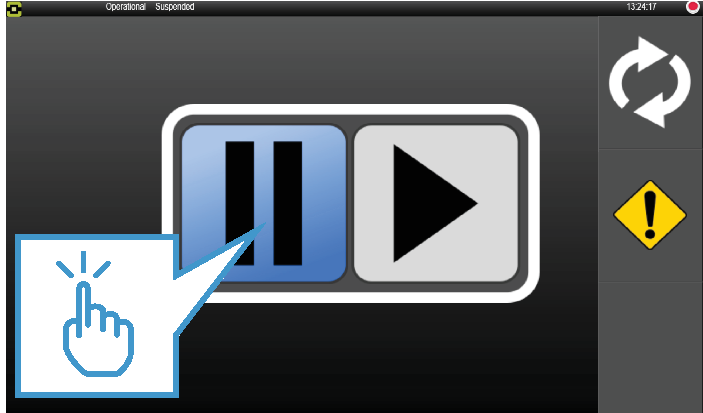
In PackNet, go to the Change z-Fold screen. Select the desired X5 machine.
Select the dropdown of the track for which z-Fold is to be changed. Make sure that the widths listed match the widths set up in the machine service application.
Select the desired z-Fold width.
Select Save.
Change z-Fold on an X6 Machine
This section only describes the actions that need to happen in PackNet when changing z-Fold. For instructions on physically changing the z-Fold on an X6 machine, see X6 User Manual [MANUAL-00028].
On the machine HMI panel, bring the machine to a controlled stop by selecting pause.
In PackNet, go to the Change z-Fold screen. Select the desired X6 machine.
Select the dropdown of the track for which z-Fold is to be changed. Make sure that the widths listed match the widths set up in the machine service application.
Select the desired z-Fold width.
Select Save.
This section only describes the actions that need to happen in PackNet when changing z-Fold. For instructions on physically changing the z-Fold on an X7 machine, see the X7 User Manual [MANUAL-00017].
Make sure that the X7 is set to Inline on the HMI.
Change the z-Fold on the X7 machine both physically and in the HMI (see the X7 User Manual [MANUAL-00017]).
Press stop on the X7 HMI to put the machine into a paused state.
In PackNet, go to the Change z-Fold screen. Select the desired X7 machine.
Select the dropdown of the track for which z-Fold is to be changed.
Select the desired z-Fold. The z-Fold in the dropdown must match the z-Fold width configured on the X7 machine exactly. When there is no exact match, no z-Fold will be displayed.
Select Save.
This section only describes the actions that need to happen in PackNet when changing z-Fold. For instructions on physically changing the z-Fold on an EM7 machine, see the EM7 User Manual [MANUAL-00010].
Go to Production > Change z-Fold.
Select the desired EM machine.
Put the machine in Pause.
Select the dropdown next to the track needing to change z-Fold.
Select the desired z-Fold width. Make sure that the widths listed match the widths being loaded onto the machine.
Select Save.
EM7 Track Offset Configuration
When changing the z-Fold, the track offset might need to be updated. Users can manually enter the track offset or they can use the Track Offset Configuration tool to help find the proper offset value.
Go to Production > Change z-Fold.
Select the desired EM machine.
Put the machine in Pause.
Select Track Offset Configuration.
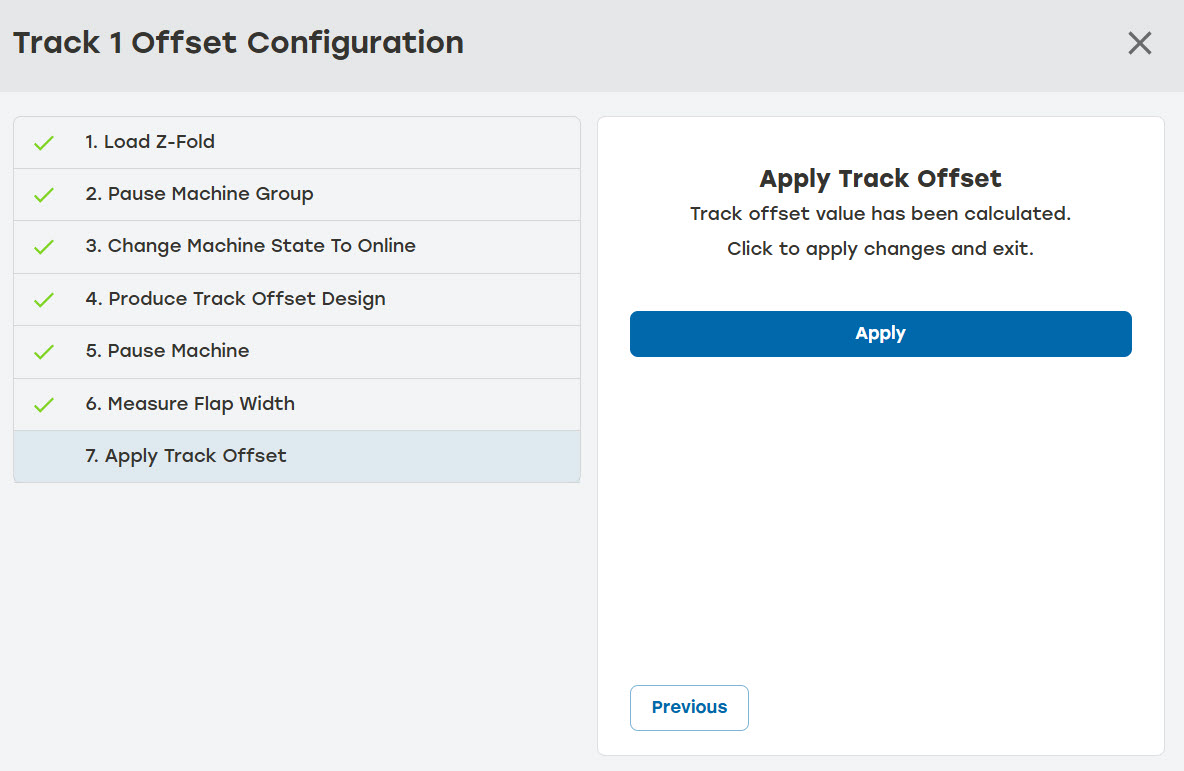
A dialog will appear with the steps for performing the Track Offset Configuration. Users can go through each step one at a time by selecting Next or go to specific steps by selecting that step. When a step is complete, a green check mark will appear next to the step.
Go to 1. Load z-Fold. PackNet displays a message indicating what size z-Fold is loaded on the machine and the current offset. To change the z-Fold or update the starting track offset, click anywhere outside the dialog to exit it.
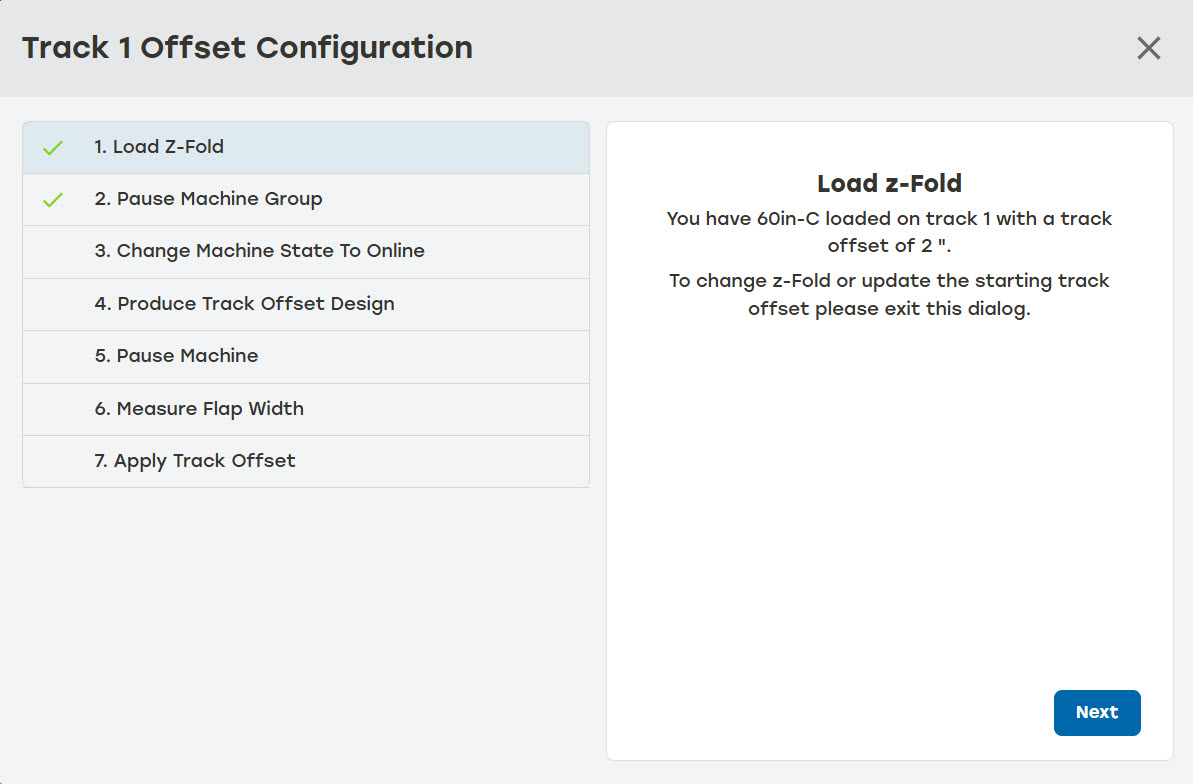
Go to 2. Pause Machine Group. The machine group must be paused to complete the configuration. Select the pause icon on the dialog. Leaving the dialog to pause the machine from the Change z-Fold page will cause the Track Offset Configuration process to restart.
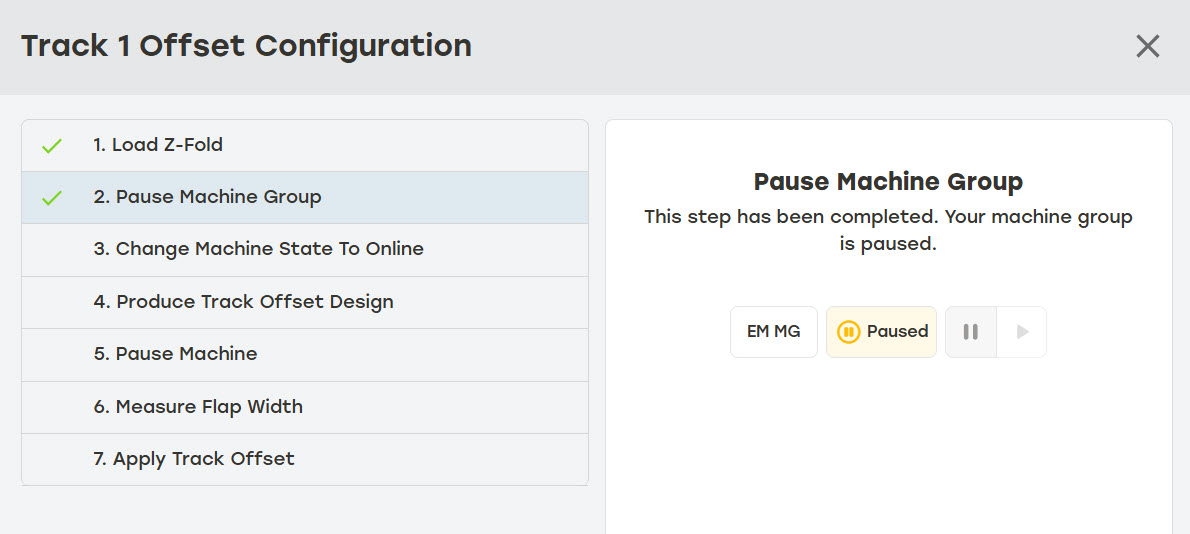
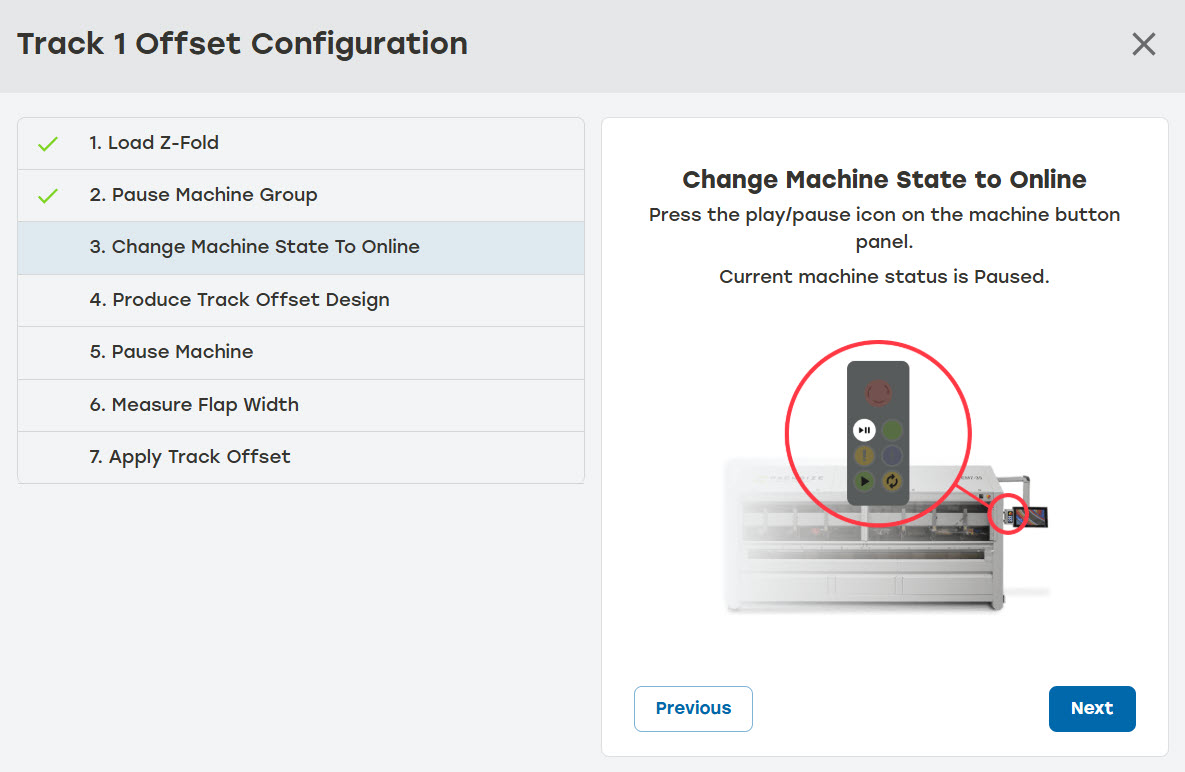
Go to 3. Change Machine State to Online. Press the play/pause icon on the machine button panel to put the machine into an online status. This step may already be completed at the start of the Track Offset Configuration process.
Go to 4. Produce Track Offset Design. Select Product Track Offset. The machine will produce a section of corrugated. When an error occurs, users can select Re-Enable Produce Track Offset to restart this step.
Note
When the Enable Production Automatically setting is active on the machine group, users may need to return to 2. Pause Machine Group and pause the machine again in order to proceed with 4. Produce Track Offset Design.
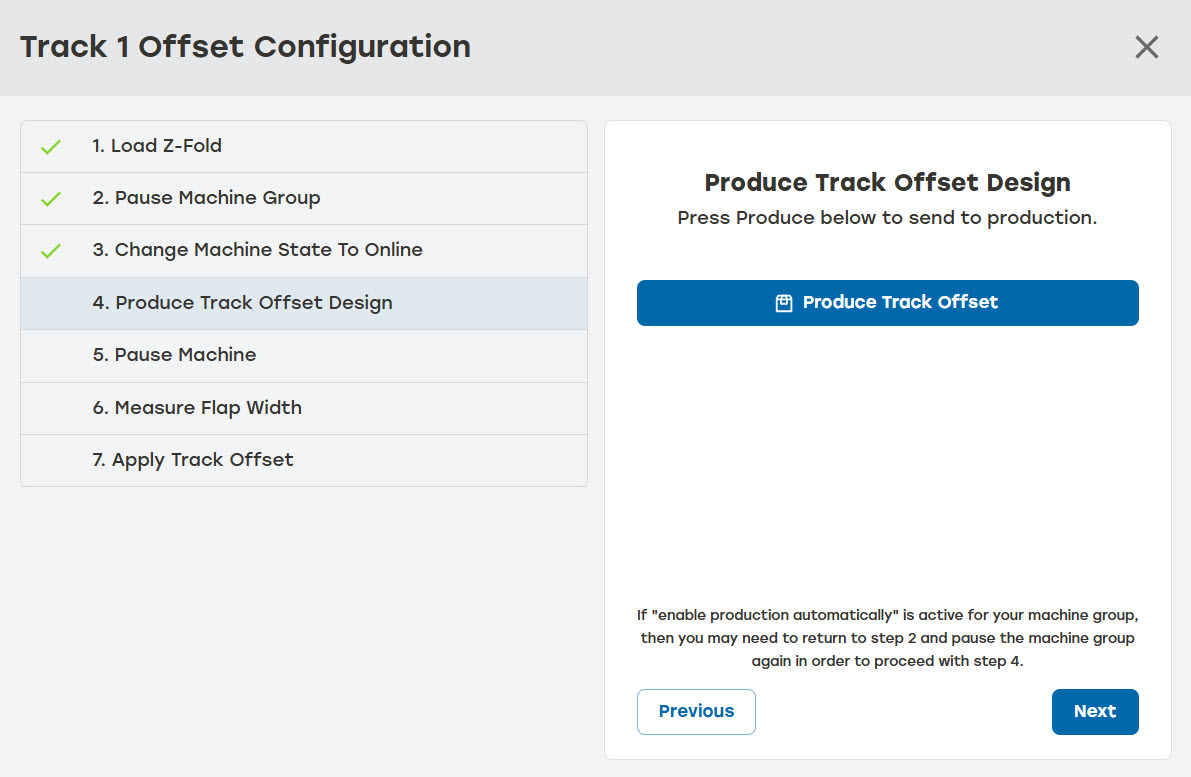
Go to 5. Pause Machine. Press the play/pause icon on the machine button panel to put the machine in an offline status.
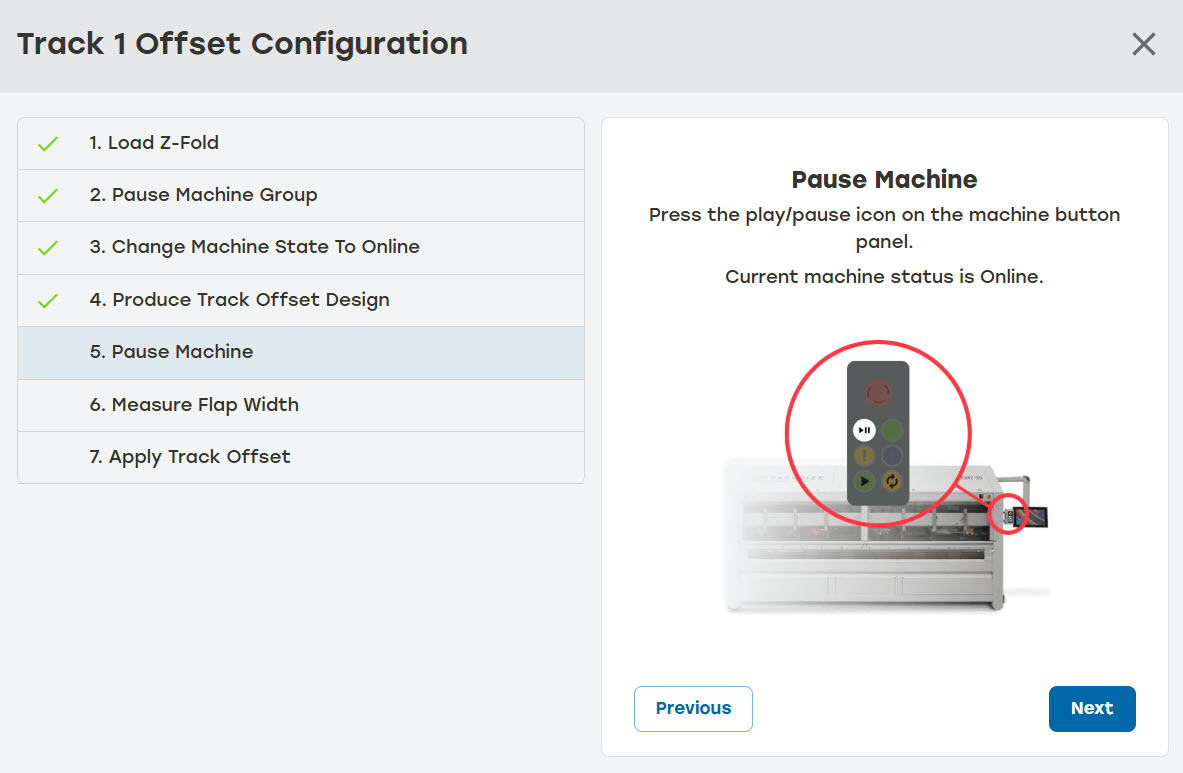
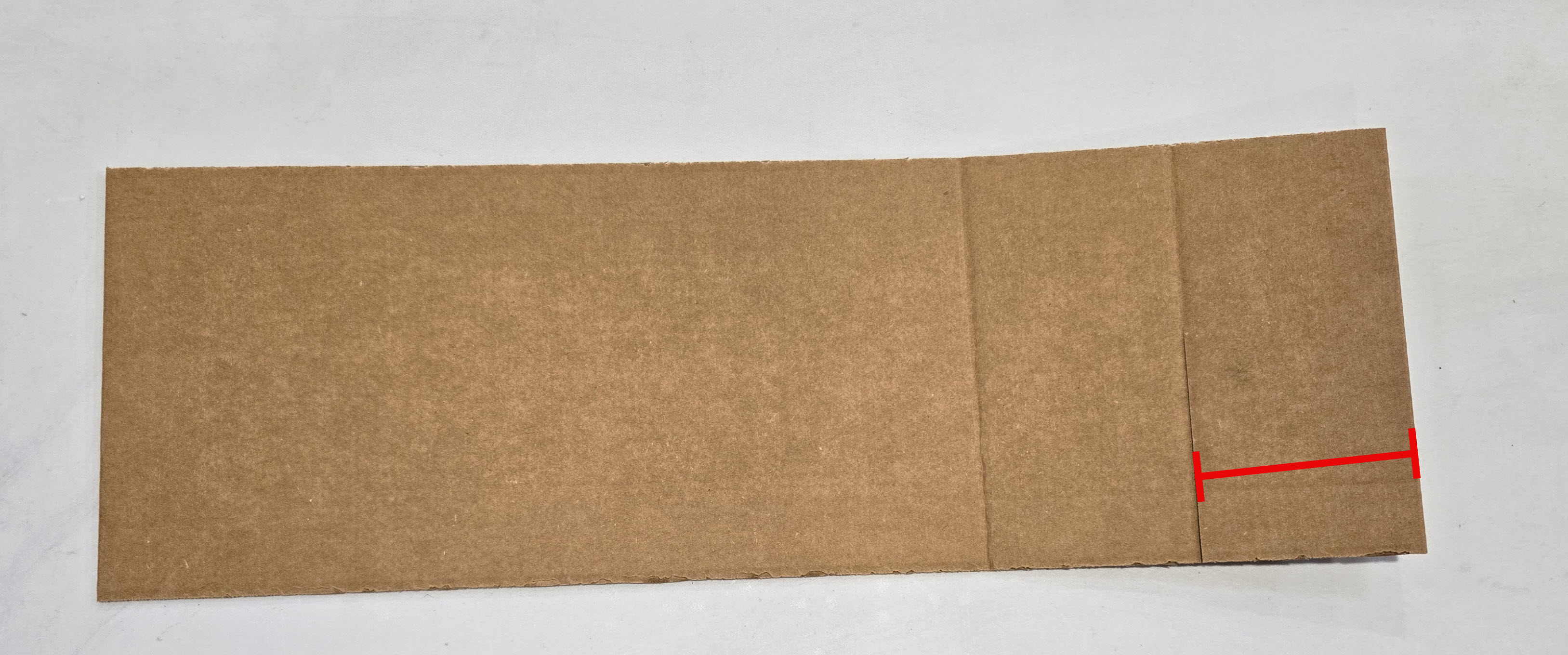
Go to 6. Measure Flap Width. Using the section of corrugated produced earlier, measure the flap from the z-Fold edge of the cut. When the cut line is not visible, check the physical track positioning. Enter the flap width in the Flap Width box.
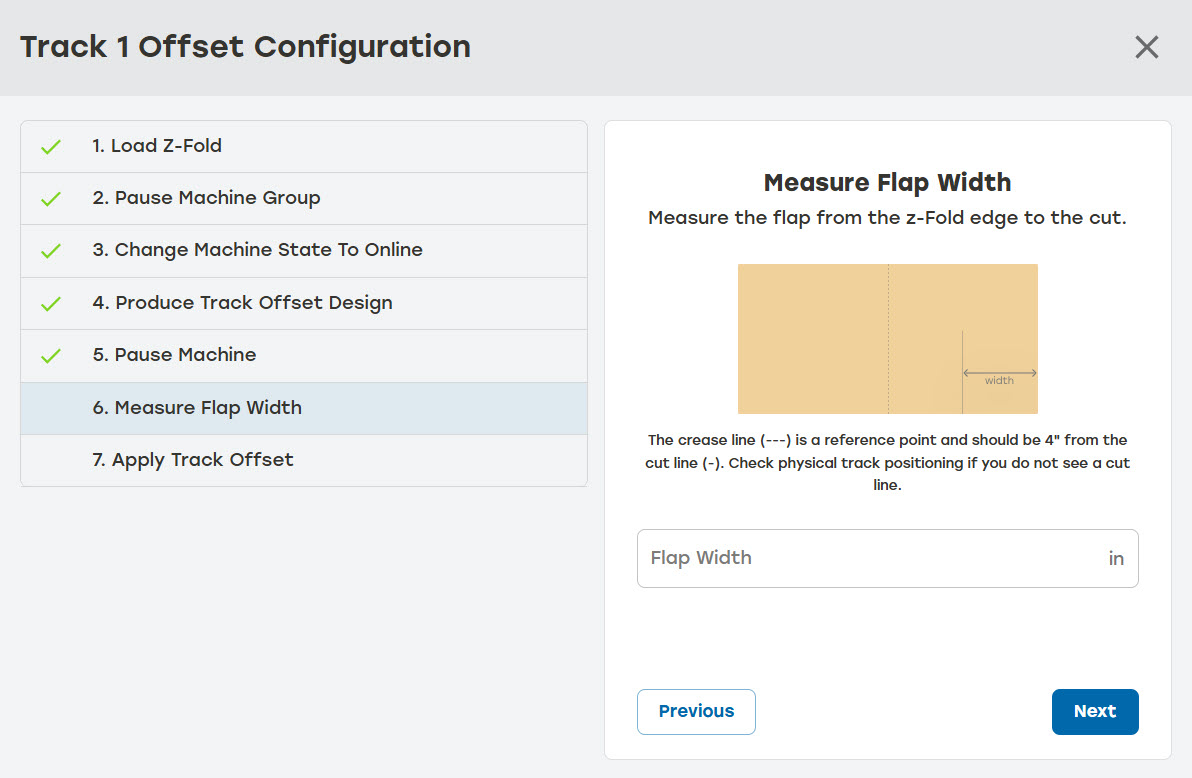
Go to 7. Apply Track Offset. Select Apply to apply the track offset value and exit the dialog.
This section only describes the actions that need to happen in PackNet when changing z-Fold. For instructions on physically changing the z-Fold on aniQ Fusion 2, see iQ Fusion 2 SWI - How to Change Bale Sizes [DOC-500568]. For instructions on physically changing the z-Fold on an iQ3, see iQ3 SWI - How to change Bale Sizes [SWI-00165].
Go to Production > Change z-Fold.
Select the desired Fusion machine.
Put the machine in Pause.
Select the dropdown next to the track needing to change z-Fold.
Select the desired z-Fold width. Make sure that the widths listed match the widths being loaded onto the machine.
Select Save.
No Track Settings Exist
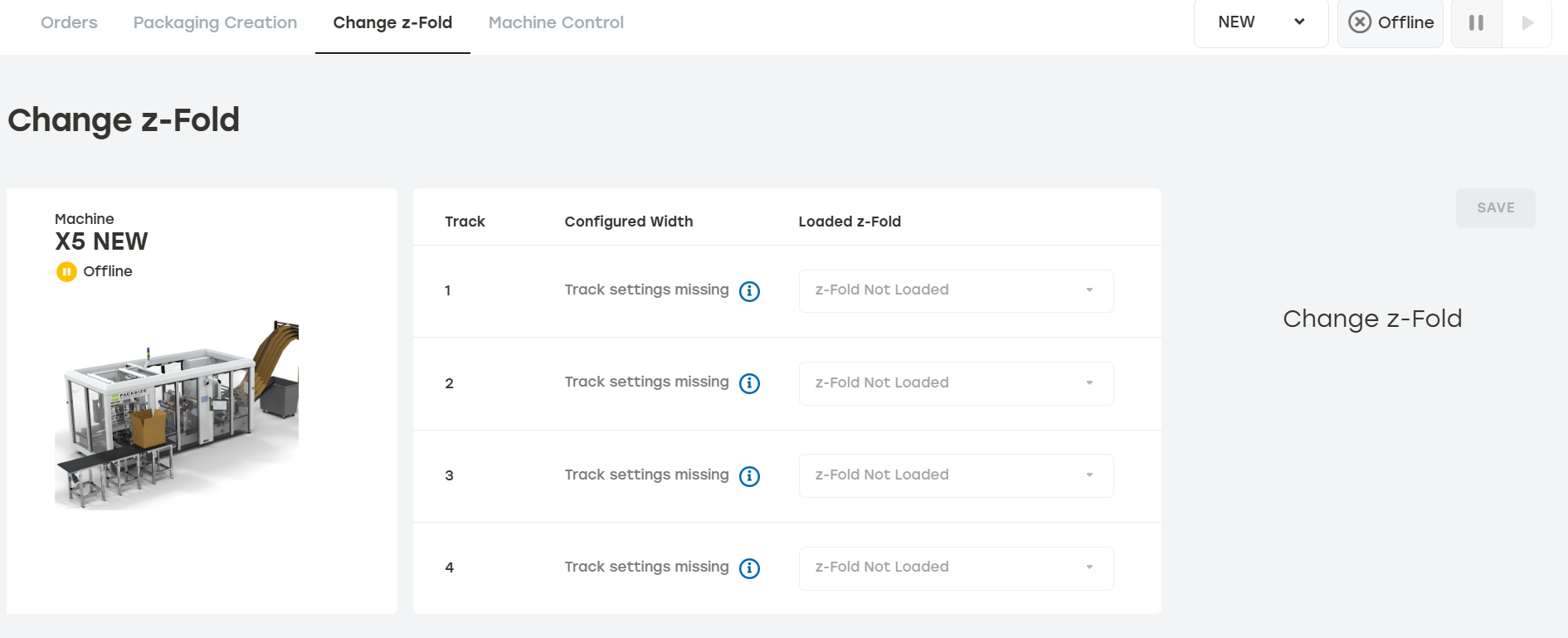
Changing z-Fold can only be done for machines that have track settings. Settings are loaded at startup of a machine. When no settings exist, the PackNet will show a “Track settings missing” notice.
 |
Current Saved z-Fold Invalid
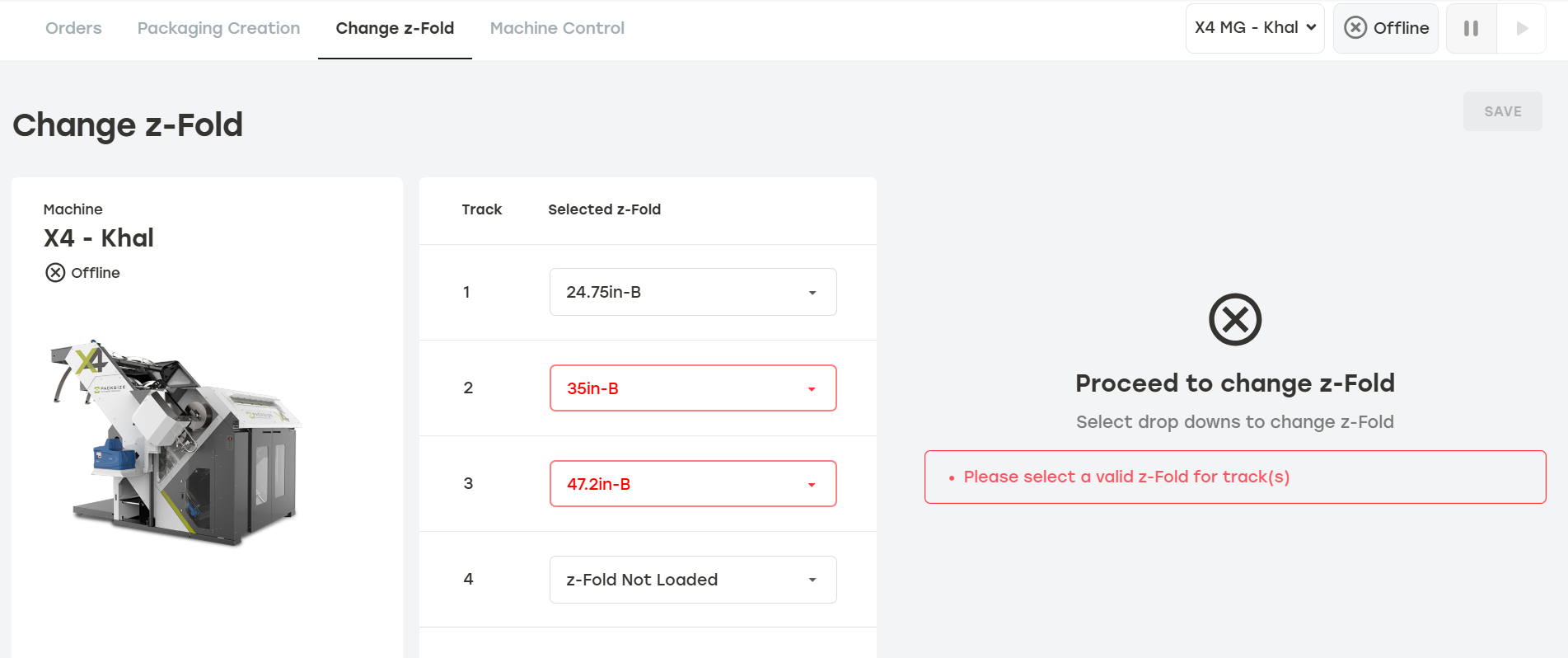
Changes to z-Fold or track settings can cause z-Fold to fail validation. PackNet won't allow users to add incorrect z-Fold lengths, the same z-Fold on more than one track, or a z-Fold with dimensions that exceed the physical design limitations of the machine. PackNet will mark invalid track configurations in these instances.
 |
Important
Configured width must match loaded z-Fold, otherwise no available z-Fold will be displayed.