Initial Pages After Login
The page users see after logging into PackNet will differ depending on the number of tenants that are available for that customer. When there are multiple tenants available, users will be taken to the site selection page. When there is only one tenant, users will be taken to the machine group select page.
Site Selection
When there is more than one PackNet site or tenant for this customer, users will be taken to the Site Selection page. This page shows all the sites available to that user. The user's email will display at the top of the page indicating which user is currently logged in to PackNet.
Select the desired site to be taken to that instance of PackNet.
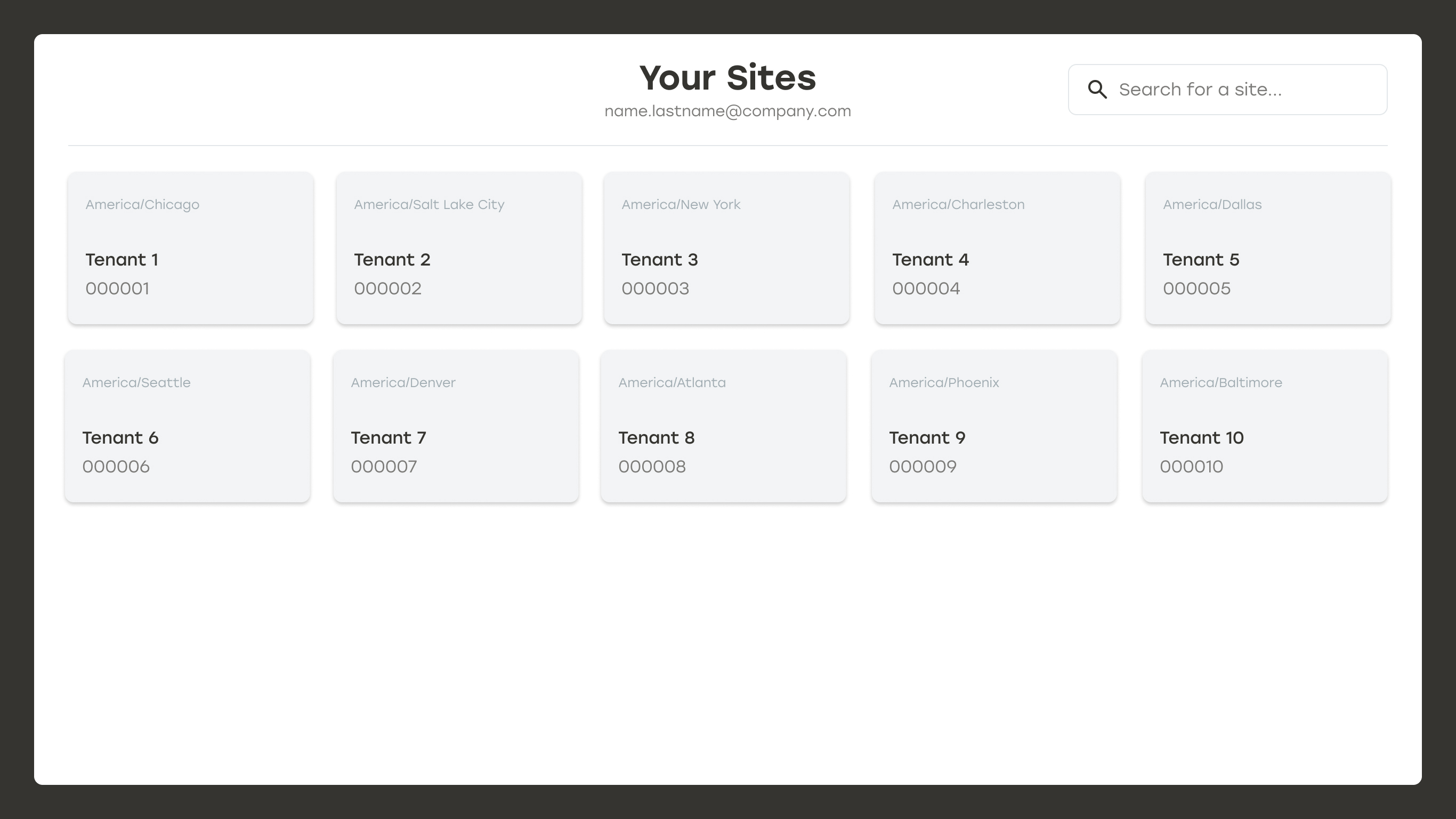 |
Changing Sites
Select the dropdown arrow next to the tenant name.
Select Change your Site.
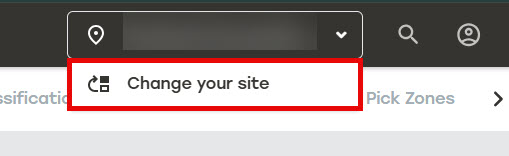
One the Site Selection page, select another available tenant.
Machine Group Selection
When a user first logs in to PackNet, the machine group selection page opens.
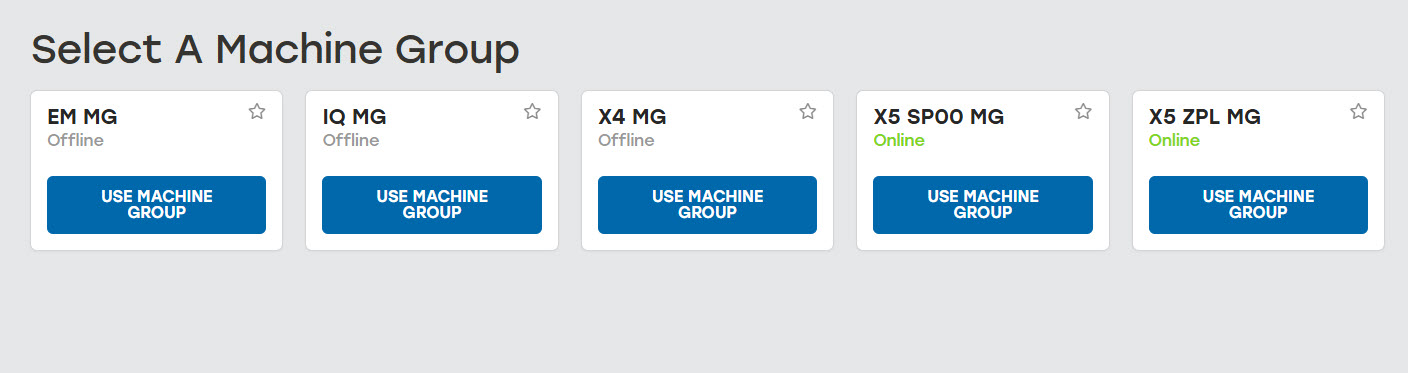 |
Select a machine group to work with before continuing. The selected machine group becomes the default for this user.
When the selected machine group is online, the Orders tab will open and indicate that the group is ready to receive jobs.
 |
The Orders page will also indicate when the machine group is offline.
 |
Operator Interface
Operator default settings allow access to multiple functions on the Production screen.
Orders: View and adjust production status, upcoming jobs, and production history
Packaging Creation: Create and save jobs
Change z-Fold: Adjust z-Fold settings
Machine Control: Access machine control functions for EM and iQ machines
Admin Interface
Admin default settings show all Production functionality found in the operator view and may include additional menu access depending on product and user permissions.
Dashboard: Set up and configure dashboard widgets
Configuration: Adjust settings for machines, materials, and users