Machines
Configuration of machines varies depending on the machine type.
Add a New Packsize Machine
Important
The machine must have an IoT device installed and properly configured in order to be compatible with PackNet. Contact Packsize for support when assistance is needed.
Only Packsize Super Admins with the Tenant Admin role have this ability.
On the Machines page, select Add New.
Select the Machine Type dropdown, and then select X4.
Enter the information as needed.
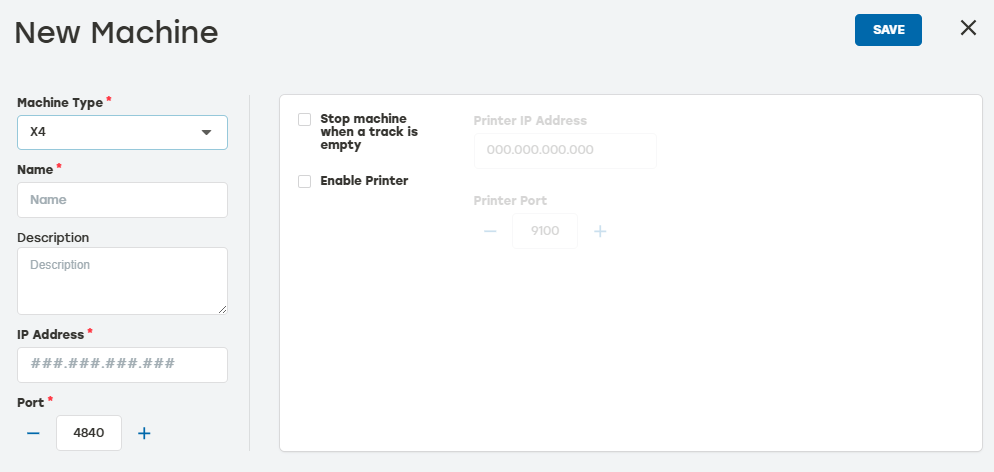
Name: This can be either a system-assigned name or something that identifies clearly which machine this is (i.e., X4 Main).
Description: This is not required but is helpful when users have more than one of the same machines in their system.
IP Address: IP addresses are unique to each device on the network. This entry must be accurate, because this is how PackNet communicates with each device.
Port: This specifies the communication port PackNet uses to talk to this machine. Port 80 is commonly used and is the default. Do not change this setting unless specifically instructed to do so.
Stop Machine When Track is Empty: Select this option to stop the X4 when any track that has been loaded with z-Fold is empty. To keep producing on other tracks and not stop production, do not select this option.
Enable Printer: This checkbox is selected when the user will be using the integrated printer and sending cartons with associated labels. The printer IP address and port (9100 default) entries must be accurate for this feature to work.
When done, select Save.
On the Machines page, select Add New.
Select the Machine Type dropdown, and then select X5.
Enter the information as needed.
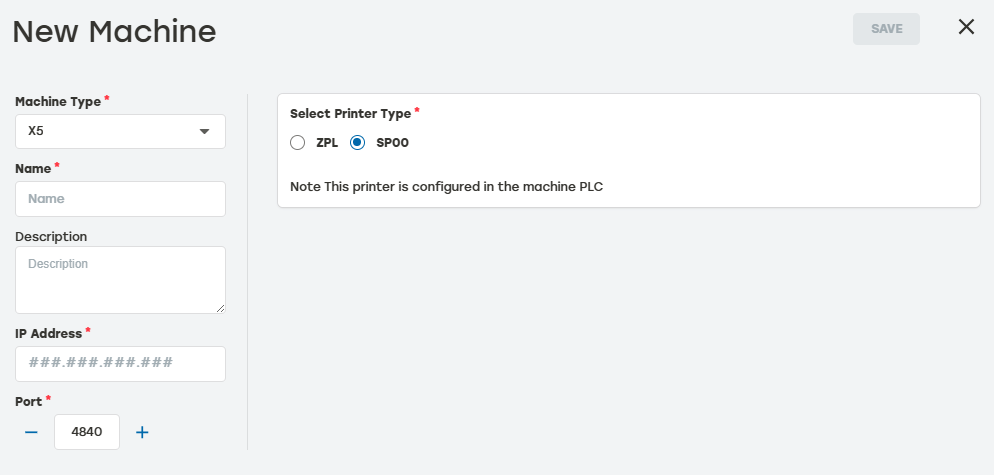
Name: This can be either a system-assigned name, or something that identifies clearly which machine this is (i.e., X5 Main).
Description: This is not required but is helpful when users have more than one of the same machines in their system.
IP Address: IP addresses are unique to each device on the network. This entry must be accurate, because this is how PackNet communicates with each device. In most cases, the IP address should be 10.241.242.2.
Port: This specifies the communication port PackNet uses to talk to this machine. Port 4840 is the default. Do not change this setting unless specifically instructed to do so.
Select Printer Type: Select the printer the machine will have.
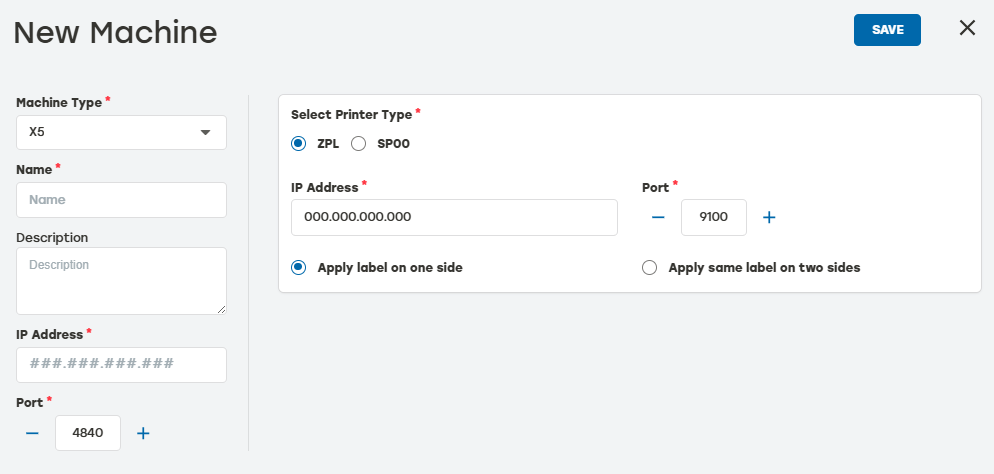
When ZPL is selected, the IP address and Port of the printer are required. Printer IP will typically be 10.241.242.6. Also, select when ZPL labels should be applied on one or two sides.
When SP00 is selected, configuration happens on the machine PLC.
When done, select Save.
Connect to the machine and put the machine into play on the machine HMI panel to synchronize settings.
Go to Change z-Fold screen and follow Change z-Fold on an X5 Machine instructions.
Add a New X6 Machine
Note
The X6 is only able to produce two carton designs: FEFCO 415 and FEFCO 453.
On the Machines page, select Add New.
Select the Machine Type dropdown, and then select X6.
Enter the information as needed.
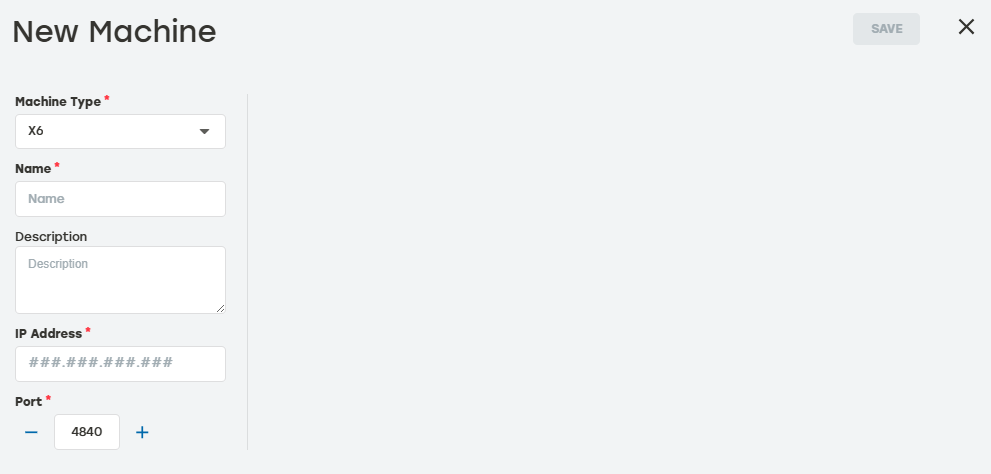
Name: This can be either a system-assigned name, or something that identifies clearly which Fusion machine this is (i.e., X6).
Description: This is not required but is helpful when users have more than one of the same machines in their system.
IP Address: IP addresses are unique to each device on the network. This entry must be accurate, because this is how PackNet communicates with each device.
Port: This specifies the communication port PackNet uses to talk to this machine. Port 4840 is commonly used and is the default. Do not change this setting unless specifically instructed to do so.
When done, select Save.
On the Machines page, select Add New.
Select the Machine Type dropdown, and then select X7.
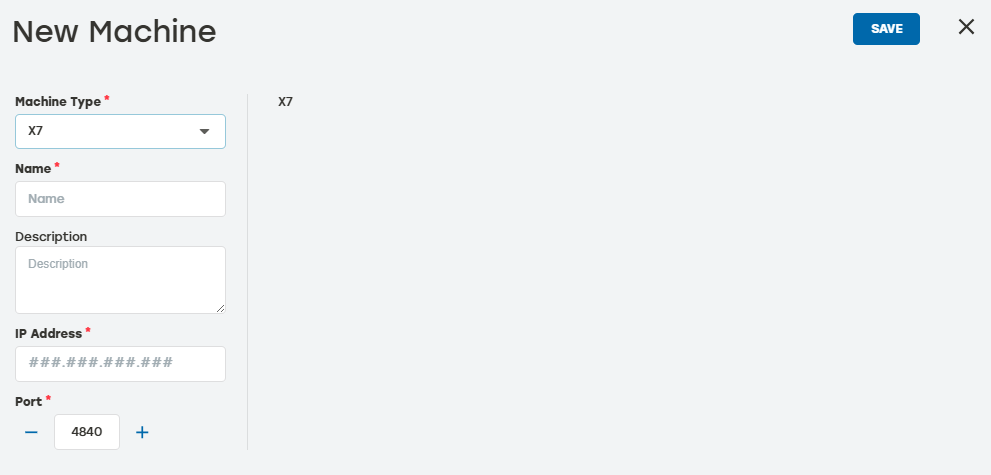
Enter the information as needed.
Name: This can be either a system-assigned name, or something that identifies clearly which machine this is (i.e., X7 Main).
Description: This is not required but is helpful when users have more than one of the same machines in their system.
IP Address: Enter the IP address of the machine. This IP address is local to the self-contained network which encompasses the IoT device and the machine's PLC. In most cases, the IP address should be 192.168.1.162.
Port: This specifies the communication port PackNet uses to talk to this machine. Port 4840 is commonly used and is the default. Do not change this setting unless specifically instructed to do so.
When done, select Save.
EM7 machines have the ability to add accessories such as cross conveyors and foot pedals. For instructions on how to configure these settings, see the EM7 User Manual [MANUAL-00010].
On the Machines page, select Add New.
Select the Machine Type dropdown, and then select EM.
Enter the information as needed.
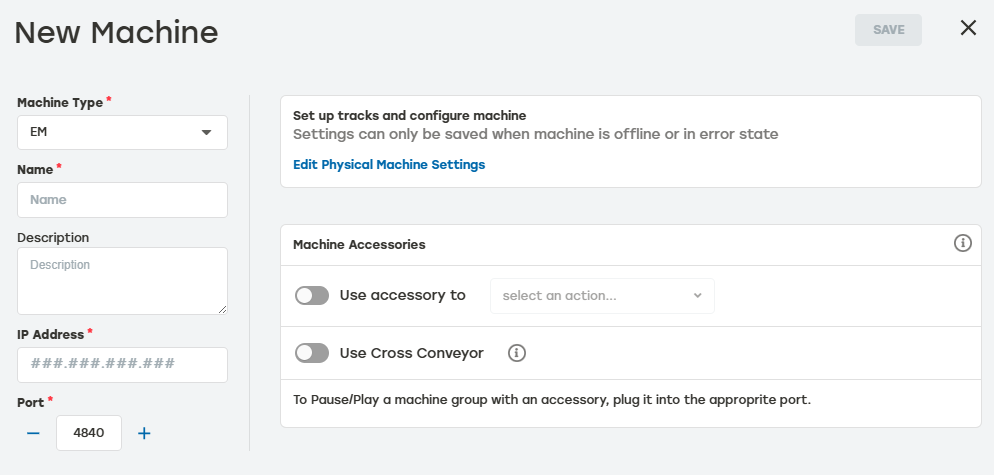
Name: This can be either a system-assigned name or something that identifies clearly which machine this is (i.e., EM7 #2). The name must be unique for all machines in the system.
Description: This is not required but is helpful when there is more than one of the same machines in the system.
IP Address: IP addresses are unique to each device on the network. This entry must be accurate, because this is how PackNet communicates with each device. It can be in IP or hostname format.
Port: This specifies the communication port PackNet uses to talk to this machine. Port 80 is used and is the default. Do not change this setting unless specifically instructed to do so.
Edit Physical Machine Settings: Used for machine configuration. Editing the physical machine settings should only be done with Packsize supervision and approval.
Accessories: This section is for adding foot pedal or cross-conveyor accessories that are physically attached to the Packsize machine.
When done, select Save.
On the Machines page, select Add New.
Select the Machine Type dropdown, and then select Fusion.
Enter the information as needed.
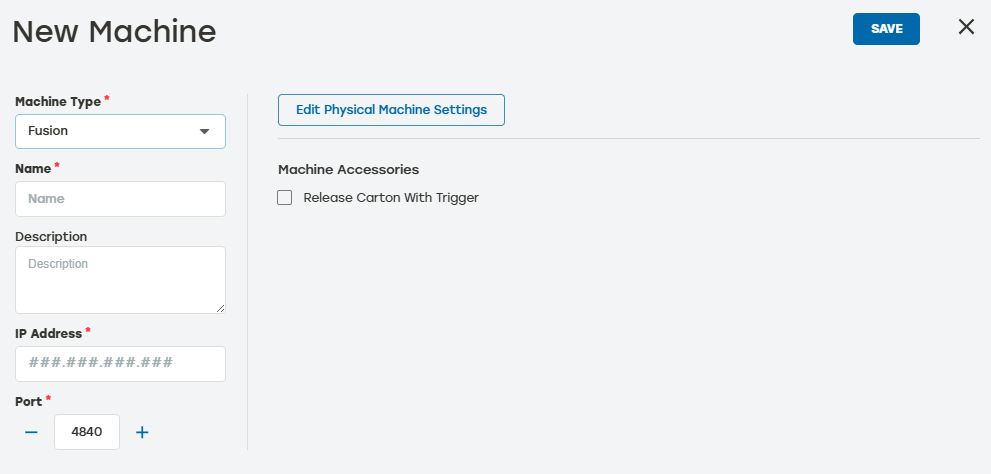
Name: This can be either a system-assigned name, or something that identifies clearly which Fusion machine this is (i.e., Fusion 2).
Description: This is not required but is helpful when users have more than one of the same machines in their system.
IP Address: IP addresses are unique to each device on the network. This entry must be accurate, because this is how PackNet communicates with each device.
Port: This specifies the communication port PackNet uses to talk to this machine. Port 80 is commonly used and is the default. Do not change this setting unless specifically instructed to do so.
Edit Physical Machine Settings: Used for machine configuration. Editing the physical machine settings should only be done with Packsize supervision and approval.
When done, select Save.
Add a Closing Machine
On the Machines page, select Add New.
Select the Machine Type dropdown, and then select Closing.
Enter the information as needed.
Name: This can be either a system-assigned name, or something that identifies clearly which Fusion machine this is (i.e., Closing Machine).
Description: This is not required but is helpful when users have more than one of the same machines in their system.
IP Address: IP addresses are unique to each device on the network. This entry must be accurate, because this is how PackNet communicates with each device.
Port: This specifies the communication port PackNet uses to talk to this machine. Port 4840 is commonly used and is the default. Do not change this setting unless specifically instructed to do so.
When done, select Save.
Machine History
Machine History displays information about that machine's production including dates, machine, activity, and user.
Go to the Machines page.
Select the history icon
 to the right of the desired machine to review the data.
Date: The date the entry happened
Type: The type of machine listed in the entry
Activity: A brief description of the action
User: The PackNet user who completed the action
Select the arrow icon
 for a detailed view of the activity.
Select anywhere outside the Machine History dialog to return to the Machines screen.
Edit a Machine
Go to the Machines page.
Select the edit icon
 to the right of the machine that needs to be edited.
Make changes as needed. The selection options will change depending on the machine type.
Select Save.
Delete a Machine
Only Packsize Super Admins with the Tenant Admin role have this ability.
Go to the Machines page.
Select the delete icon
 to the right of the machine that needs to be deleted.
A dialog will appear asking to confirm deletion. Select Yes.
Make sure that the deleted machine no longer appears on the Machines page.