Print Images
Note
This feature is only available on X5 machines.
X5 machines with an EFI printer have the ability to print images on the box. Use this section to add the PDF images that are used by the EFI printer.
Add Print Image
On the Print Images page, select Add New. The Upload Image File dialog will appear.
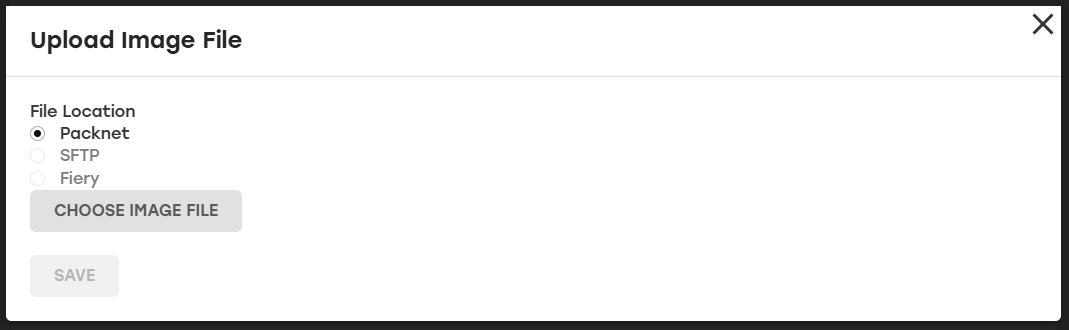
Select the File Location, and the select Choose Image FIle.
Select the desired PDF file. Change the image file name when needed.
Enter the image dimensions (LxWxH).
Select Save.
Preview Print Image
Go to the Print Images page.
Select the image in the Image Preview column.
A preview will display.
When done, select Close.
Edit Print Images
On the Materials page, select Print Images.
Select the edit icon
 to the right of the print image that needs to be edited.
Make changes as needed.
Select Save.
Delete Print Images
On the Materials page, select Print Images.
Select the delete icon
 to the right of the print images that needs to be deleted.
A dialog will appear asking to confirm deletion. Select Yes.
Make sure that the deleted print image no longer appears on the Print Images page.