z-Fold
z-Fold bales are the large bales of corrugated material that are continuously fed into Packsize machines.
The information for each z-Fold bale used in each Packsize machine must be set up in PackNet so the system can route carton requests to the correct machine efficiently.
Add a New z-Fold
On the z-Fold page, select Add New.
Enter the details for the new z-Fold.
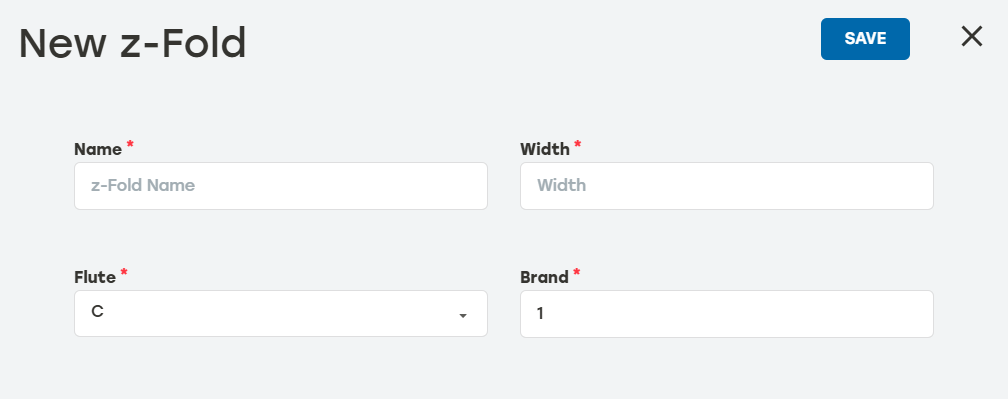
Name: This should be something that clearly identifies which z-Fold this is (i.e., 27.250 to represent the z-Fold size or width).
Width: The z-Fold width.
Flute: The z-Fold flute size; for example, B or C. This will automatically determine the z-Fold thickness.
Brand: This setting is used to differentiate between corrugated types based on the unique characteristics that customer requires (i.e., 1 could mean single-wall z-Fold; 2 could mean double-wall z-Fold).
Select Save.
Make sure the new z-Fold now appears on the z-Fold screen.
z-Fold History
On the Materials page, select z-Fold.
Select the history icon
 to the right of the desired z-Fold to review the data.
Date: The date and time the entry happened
Type: The type of z-Fold listed in the entry
Activity: A brief description of the action
User: The PackNet user who completed the action
Select the arrow icon
 for a detailed view of the activity.
Select anywhere outside the z-Fold History dialog to return to the Materials screen.
Edit z-Fold
Once a z-Fold has been created, only the name is editable.
On the Materials page, select z-fold.
Select the edit icon
 to the right of the z-Fold that needs to be edited.
Update the z-Fold name.
Select Save.
Delete z-Fold
On the Materials page, select z-Fold.
Select the delete icon
 to the right of the z-Fold that needs to be deleted.
A dialog will appear asking to confirm deletion. Select Yes.
Make sure that the deleted z-Fold no longer appears on the z-Fold page.