Import Pipeline
PackNet provides a number of integration points for customer systems. API call is the preferred method to send data to PackNet. This section will cover all supported data import methods. Currently, PackNet supports API requests and Filedrop as data import methods. For more information about using API requests in PackNet, see PackNet Software Platform API Reference [SPEC-00295].
Note
Each tenant can only import 20,000 cartons every five minutes.
Import Pipeline is divided into three sections: Import Selection, Mapping, and Rules. These sections describe the basic look and function of Import Pipeline, but won't cover how to use Import Pipeline to create jobs. For detailed instructions for using Import Pipeline, see PackNet Integration Requirements [SPEC-00037].
Import Selection
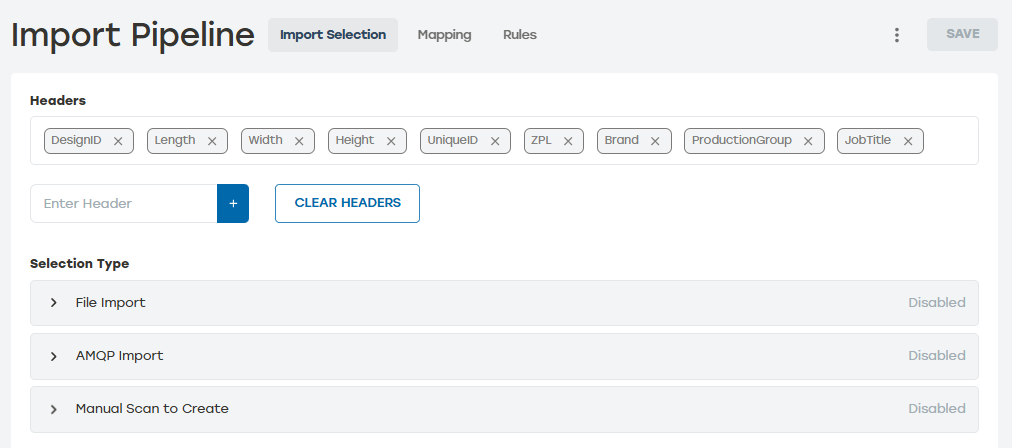
Import Selection allows users to define headers, select File Import or AMQP Import, and enable Manual Scan to Create or Manual Scan to Trigger.
 |
Headers
Headers are the fields that will be used to pass data into PackNet. Headers defined in this section can be used to map and transform data in Data Mapping and Rules.
Headers can be defined in two ways. To manually define headers, enter a unique header name into the Enter Header box. If the header field is empty, the headers can be uploaded with a .csv file that contains the headers.
Headers can be deleted by selecting the X next to the header name or selecting Clear Headers to delete all the headers at once.
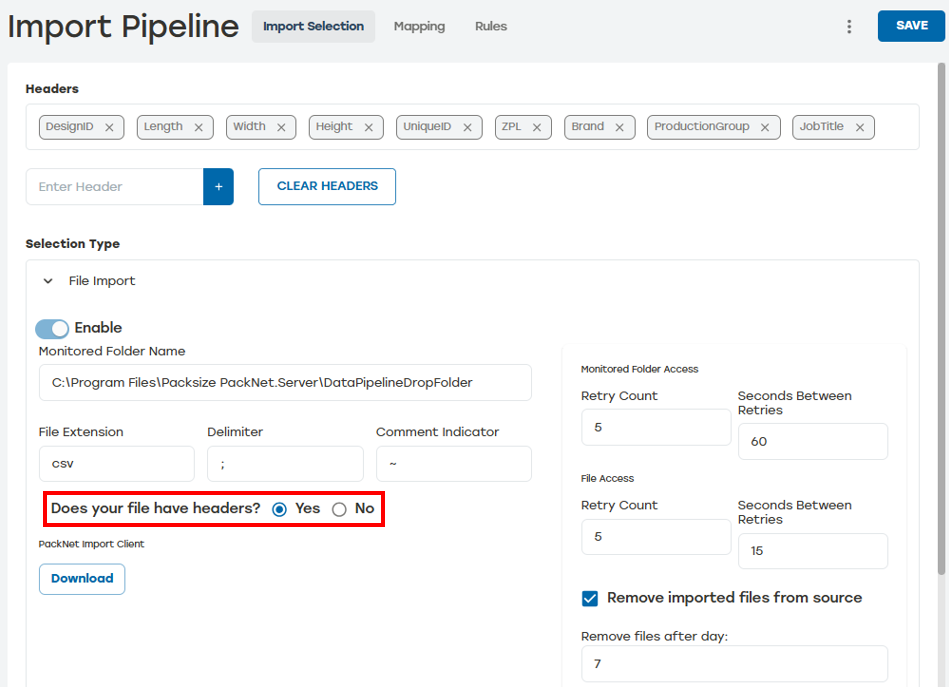
When using Import Client with a file that does not include headers, the order in which these headers are added matters. When selecting Yes to the question Does your file have headers? a text box will appear above Selection Type. Enter the headers that will be used for the Import Client.
Note
Import Client only runs on machines with Windows 10 or Windows 11.
 |
File Import
Using File Import allows the Import Client application to watch a folder specified for new files and send the data to PackNet as new jobs. After the file's data is sent to PackNet, it will be renamed according to the following format: [originalfilename].[processed|failed]_[timestamp].
Note
Import Client only runs on machines with Windows 10 or Windows 11.
AMQP Import
Using AMQP Import allows the Import Client application to import jobs by watching for messages published to an AMQP server exchange.
Note
Import Client only runs on machines with Windows 10 or Windows 11.
Manual Scan to Create
Scan to Create allows jobs to be created by scanning a barcode with the defined carton structure.
The Manual Scan to Create section in Import Pipelines is where the user defines the carton that will be created when scanned.
Manual Scan to Trigger
Scan to Trigger holds jobs from being produced until the corresponding License Plate Number (LPN) has been scanned. Once the LPN has been scanned, the job with the corresponding LPN will be released for production and the carton(s) will be created. Production will pause again until the next LPN is scanned.
The Manual Scan to Trigger section in Import Pipelines is where the user enables this feature, but additional set up is required before this feature can be used.
Mapping
Mapping explicitly links customer data to PackNet fields.
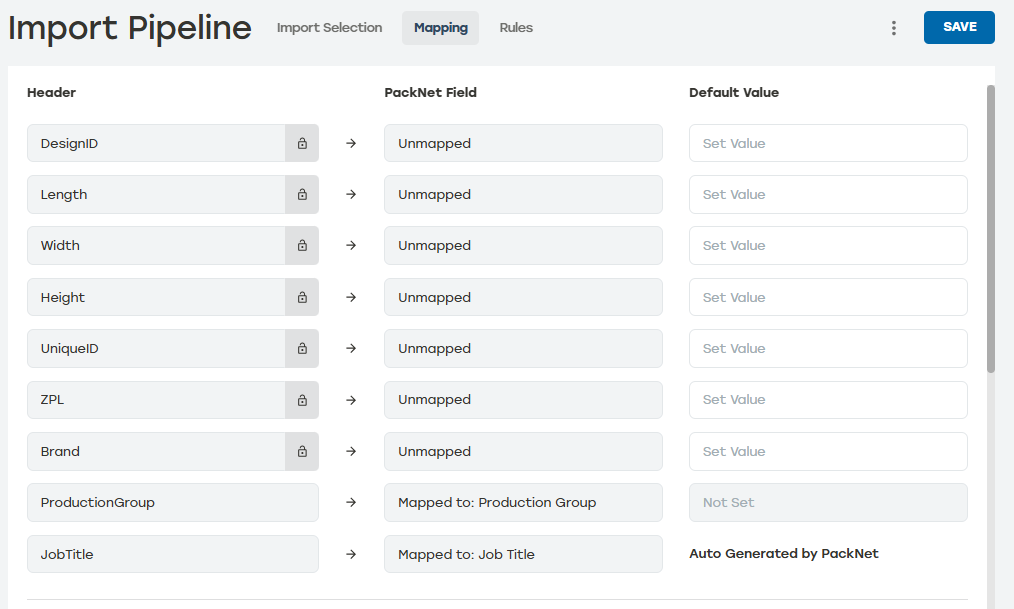 |
Header: Customer data identifiers defined in Import Selection. They are interchangeable, and headers can be used for any mapping or rule.
PackNet Field: Predefined objects that allow the system to process the specified data in an orderly and precise manner.
Default Value: When the customer header does not contain any data, a default value can be used instead. Default values can also be used in the creation of Rules even when they are not mapped.
All headers are automapped to a PackNet field when the name matches. Otherwise, a custom attribute of the same name will be created.
Custom attributes are not mappable to a PackNet field, but are settable at import time and can be used in Rules.
Import Pipeline uses three types of fields: Job Level, Carton Level, and Label Level.
Job Level fields: The values that apply to the job itself. These can be set by Mapping or within Rules. An example of a Job Level field is License Plate Number or Machine Group.
Carton Level fields: The values that apply to a carton. These can be set within Rules using Add Carton or Set Carton Value. An example of a Carton Level field is DesignID or Length.
Label Level fields: The values that apply to the label. These can be set within Rules using Add Label or Set Label Value. An example of a Label Level field is Template or Verification Code.
All these fields together are used to create the Packaging Solution.
Rules
The Rules section is used to transform data and add deliverables (cartons, labels) according to configured conditions and actions. When a condition is met, a rule action is applied.
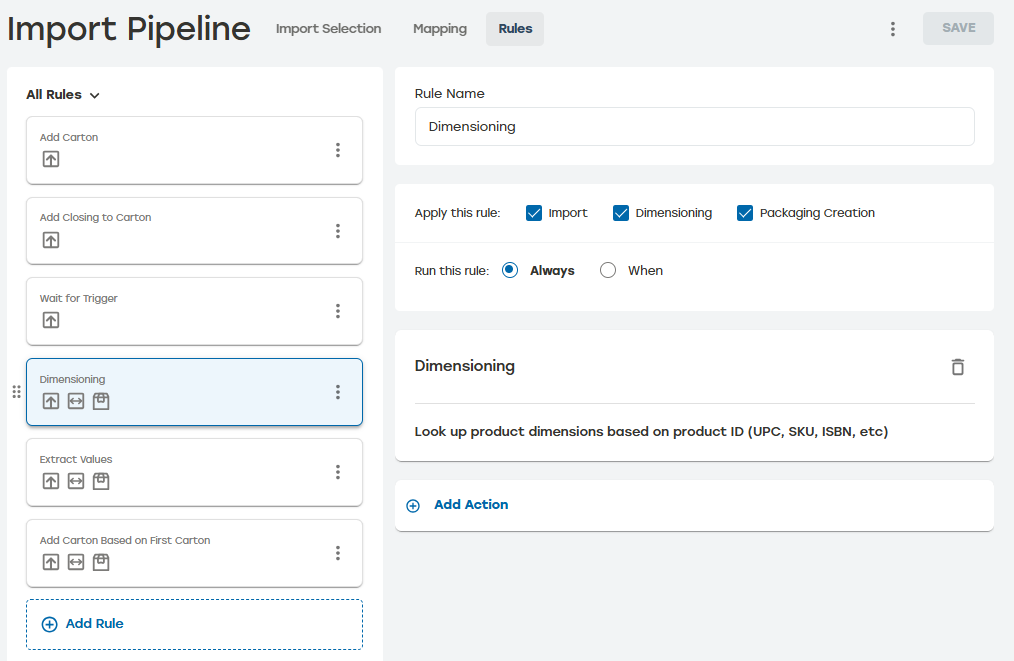 |
Import Pipeline can have an unlimited number of rules; each rule has set conditions and actions. Rules are evaluated in order. This mean that when the condition applies to a rule, the actions are executed in the order they appear in that rule.
Rules can be applied to Import, Dimensioning, and Packaging Creation pipelines or any combination of these options. At least one pipeline must be selected for the rule to be saved. Users must have access to PackNet DIM for the Dimensioning option to be available. Each rule will display icons indicating which pipelines apply to that rule. Rules can be filtered to show all rules, Import rules, Packaging Creation rules, and Dimensioning Rules.
Deliverables are not created implicitly. Rule actions must be used to add a carton or a label. Similarly, to edit a deliverable that has been created, use rule actions such as "Set Carton Value" or "Set Label Value."
The expressive power of rule actions and conditions should be able to produce the deliverables as desired for most customer scenarios. Work with the Packsize Product team for scenarios not covered with the existing implementation.
Importing Data via PackNet Import Client
Import Client is a Windows stand-alone application, running as a service, installed by an MSI that runs on a machine in the customer's network. It can work from Files or AMQP as configured in the Import Selection section of Import pipelines.
Note
Import Client only runs on machines with Windows 10 or Windows 11.
The Import Client installer requires an API Key which will be provided to the customer when File Import or AMPQ import is needed. See Generate an API Key for more information. After installing the service, it will run a PackNet Import Client Service.
Importing Data via an API Call
PackNet supports the use of API requests. The API will receive the regular POST request with the data in JSON format. Once a valid POST request is received, a response will be sent to the caller. There are two API endpoints that can be used to send data into PackNet.
Authorization Method
The PackNet API Gateway supports two authentication methods for secure API request authorization:
OAuth 2.0 Client Credentials Flow (Recommended for new integrations)
Basic Authentication with API Key (Legacy support for backward compatibility)