Carton Designs
Cartons Designs are the basic information for how to create a carton. Generally, a design can be used to create a carton of many different sizes. Users can organize the carton designs by sorting by Name or Design ID in ascending or descending order. They can also Filter by Name or Design ID.
Add New Carton Design
On the Carton Designs page, select Add Designs.
Select the desired carton design from the list, or upload a new design by selecting Upload File and following the prompts.
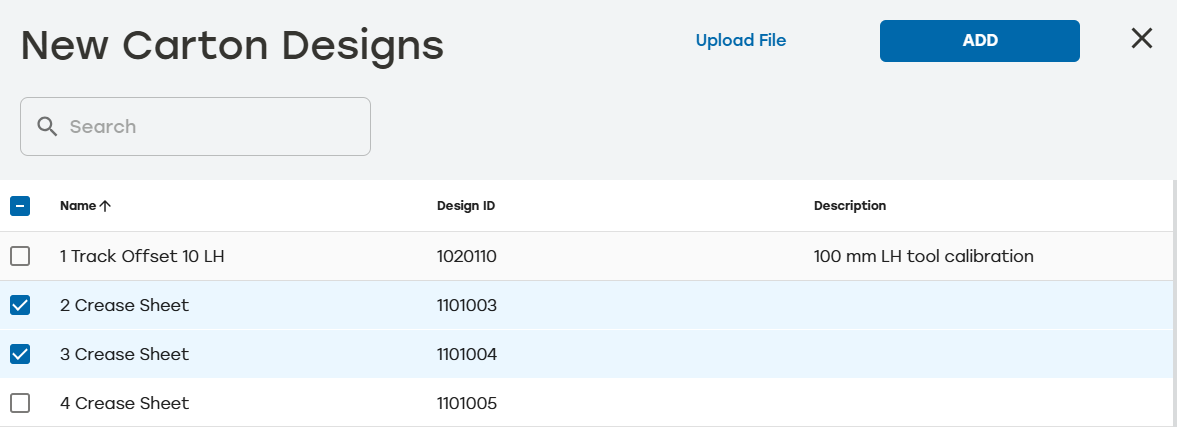
Select Add.
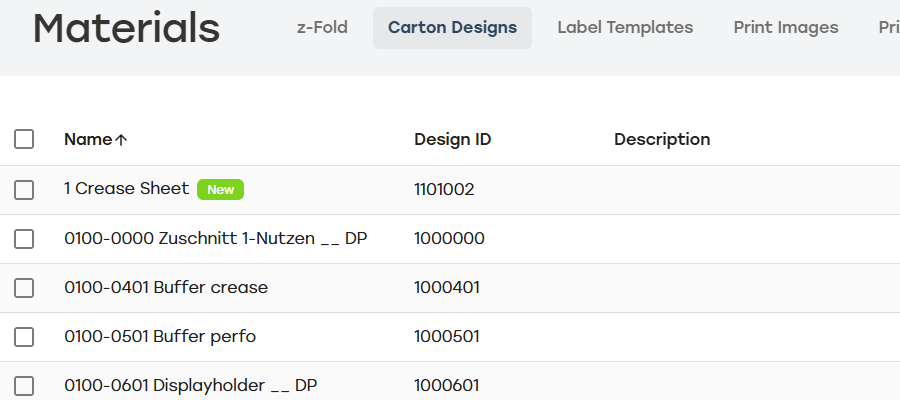
On the Carton Designs page, the added design will have a New label next to the name.
Download Carton Design
On the Materials page, select Carton Designs.
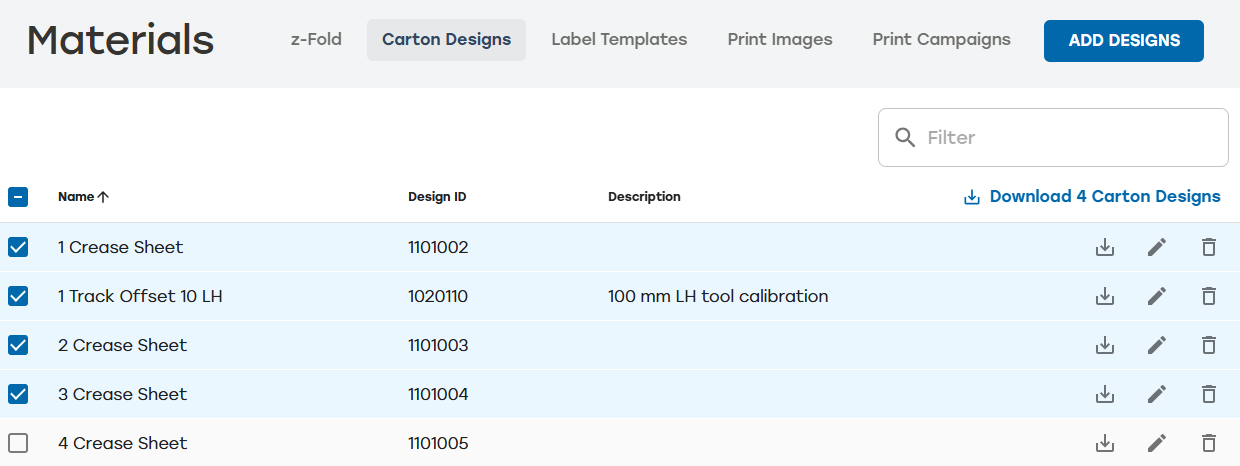
Download the carton designs by doing one of the following:
Select the download icon
 to the right of the carton design that needs to downloaded.
Select the boxes next to the carton designs that need to be downloaded, and then select Download [#] Carton Designs where [#] is the number of cartons selected.
When desired, users can adjust designs by editing the downloaded file.
Once the changes have been saved, the edited file can be uploaded to Packaging Creation by selecting Add Designs >Upload File and then following the prompts.
Note
Uploading a new file replaces all the existing carton design information except the carton design description, which will remain unchanged. This action cannot be undone. Use caution before uploading a new version of a carton design.
Edit Carton Design
On the Materials page, select Carton Designs.
Select the edit icon
 to the right of the carton design that needs to be edited.
Make changes as needed.
Select Save.
Delete Carton Designs
On the Materials page, select Carton Designs.
Select the delete icon
 to the right of the carton design that needs to be deleted.
A dialog will appear asking to confirm deletion. Select Yes.
Make sure that the deleted carton design no longer appears on the Carton Designs page.