Users
The User page lists all the users who have access to that instance of PackNet, their username, first name, last name, and what roles have been assigned to them. Users are searchable by user name with the search bar at the top of the page.
PackNet has a default administrator user (PacksizeAdmin) already set up in the system. This user cannot be deleted. However, additional users can be added, edited, or deleted by an administrator. After a user is created, they must be assigned a role. This gives specific permission settings to each user, defining what they can and cannot do while working in PackNet.
Add a User
On the User page, select Add New.
Enter information for the user as needed:
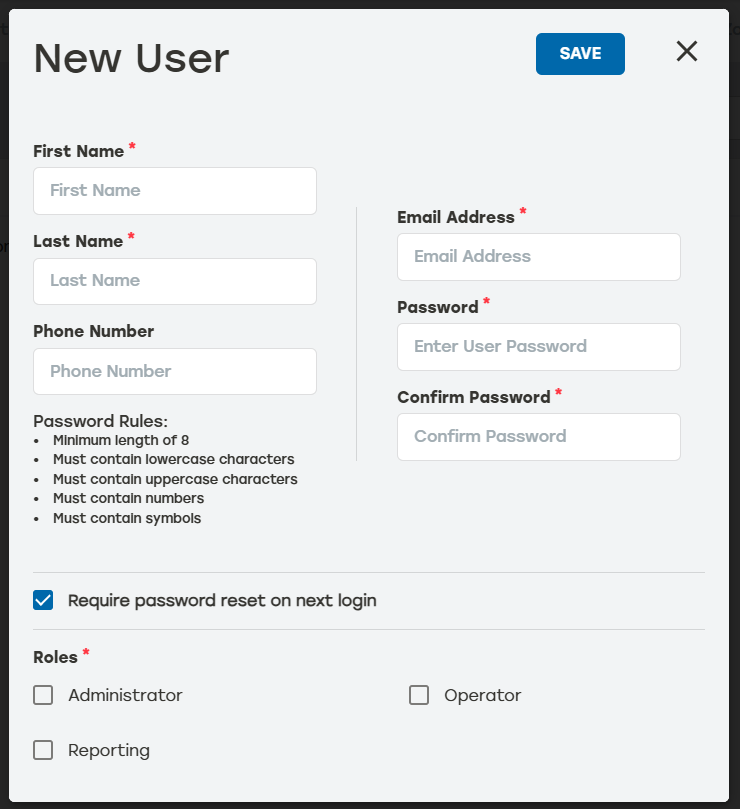
First Name: Enter the new user’s first name.
Last Name: Enter the new user’s last name.
Phone Number: Enter the new user's phone number (optional).
Email Address: Enter the email address for the new user.
Password: This verifies the login is authorized. Usernames and passwords cannot be the same and are case-sensitive.
Confirm Password: This makes sure that the correct password was entered the first time. The password and retyped password must match exactly.
Note
When using SSO, the Password and Confirm Password fields will be unavailable.
Roles: Select the desired role for this user. When roles have not been set up yet, the user will be given default permissions until a role is assigned to them.
Select Save.
Edit a User
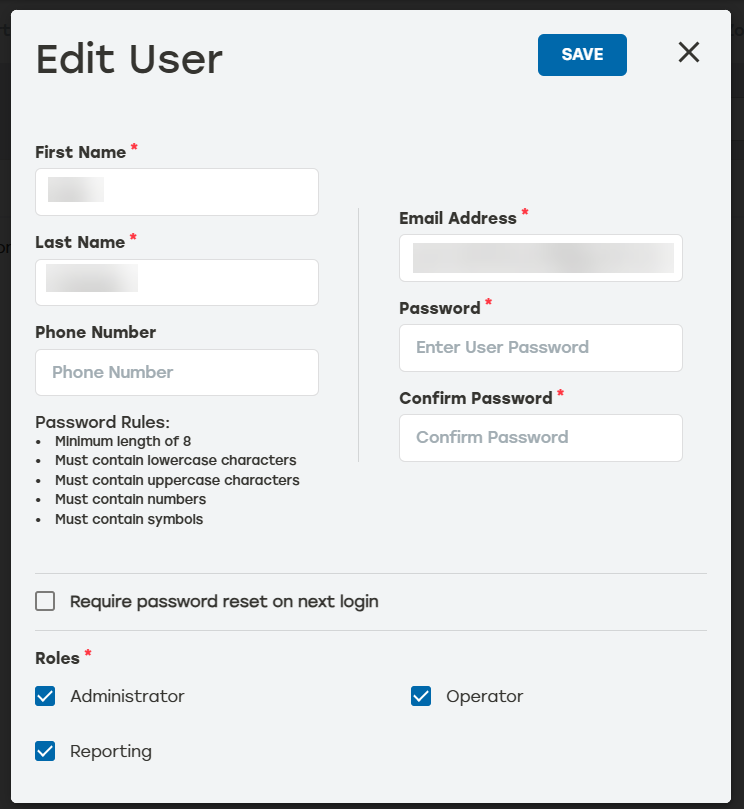
From the Edit User dialog, admins can change a user’s password, names, phone number, and roles.
 |
Go to the Users page.
Select the edit icon
 to the right of the user that needs to be changed.
Make changes as needed.
Note
The username for an existing user cannot be changed. When the username is wrong, the user must be deleted and then added as a new user with the correct username.
Select Save.
Delete a User
Go to the Users page.
Select the delete icon
 to the right of the user that needs to be deleted.
A dialog will appear asking to confirm deletion. Select Yes.
Make sure that the deleted user no longer appears on the User page.