Dashboard Setup
Users can access the PackNet Dashboard at the top level navigation bar. Only users that have an Access Dashboard role are able to view the dashboard. The Dashboard is currently limited to a specific browser. Settings are specific to a user and can be configured based on the user's preference.
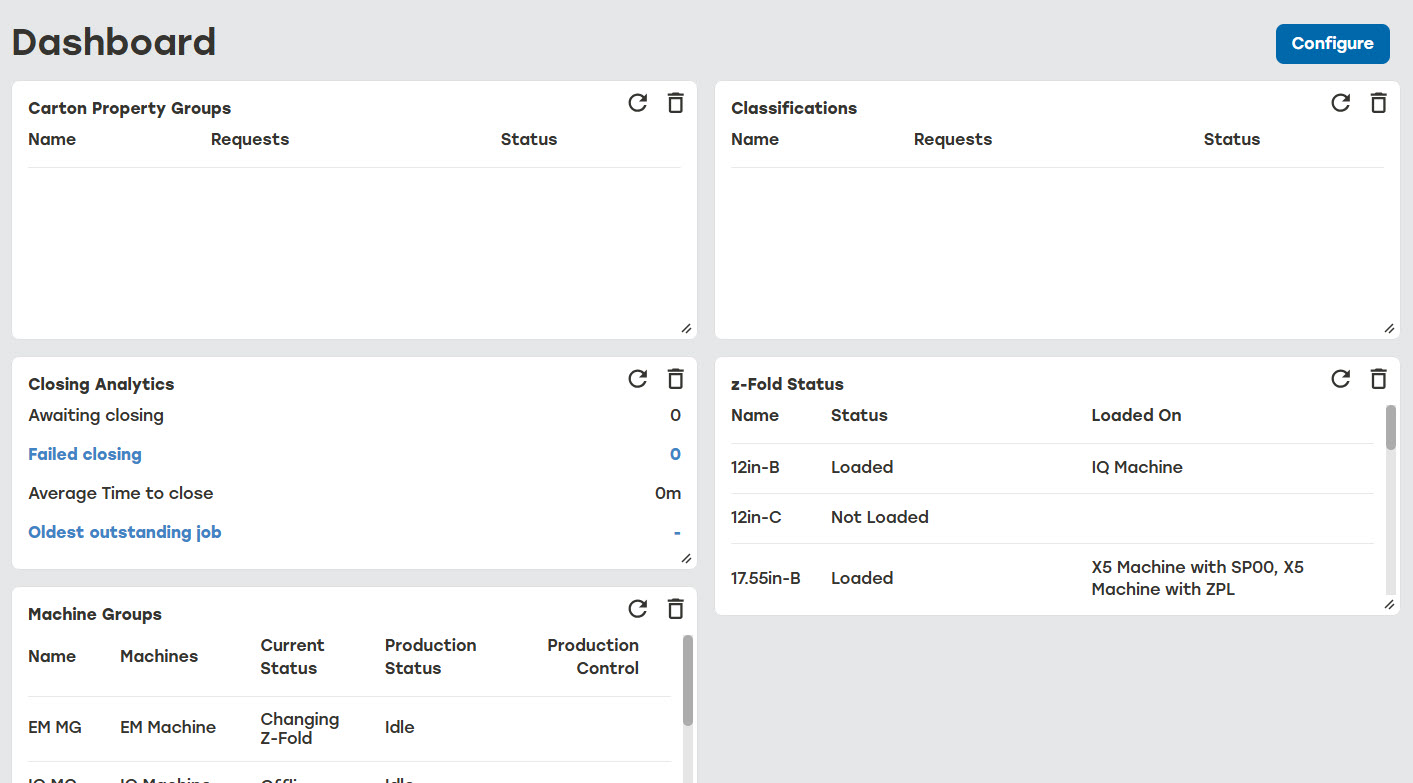 |
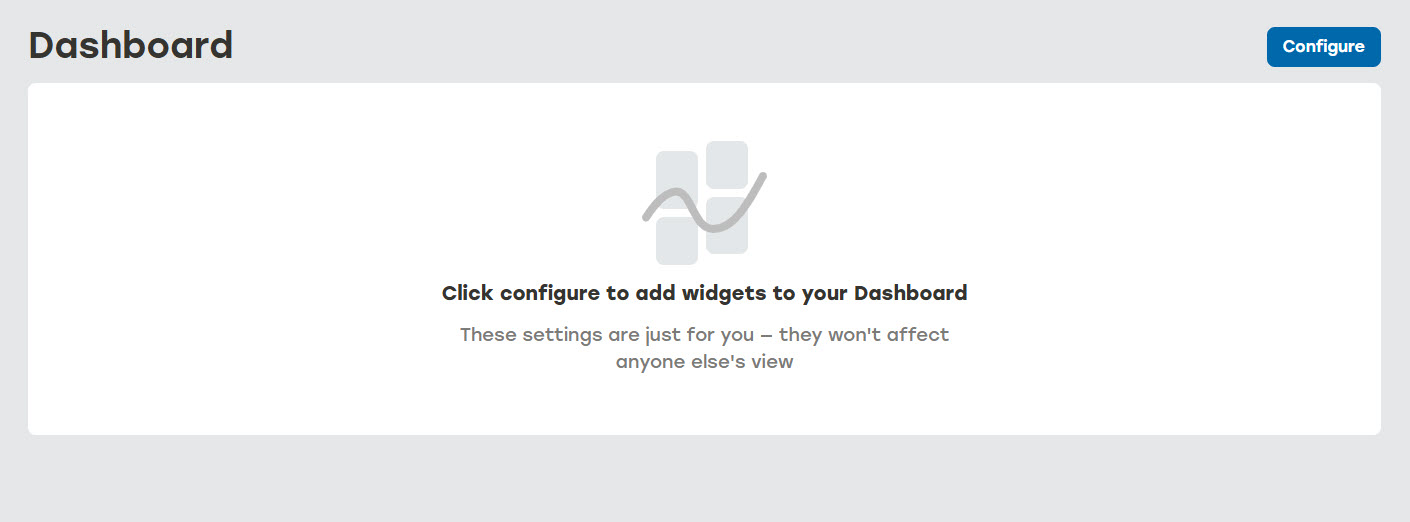
Go to Dashboard, and then select Configure to access the Configure Dashboard menu.
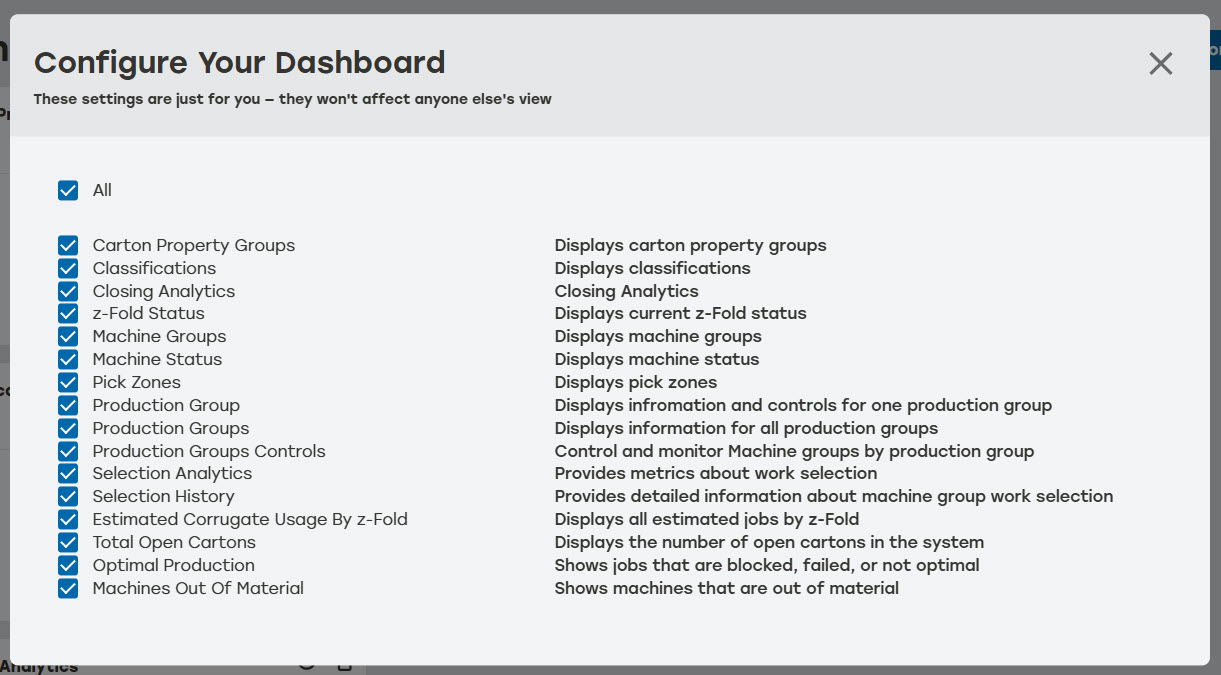
On the Configure Dashboard menu, select the boxes that correspond to the widgets being added the Dashboard.
Select Close.
Dashboard Widgets Interactions
Dashboard widgets can be interacted with in the following ways.
Rearrange widget: Drag each widget in the desired order
Resize widget: Drag the handle icon
 in the lower right corner to change the size of each widget
Refresh widget: Select the refresh icon
 to refresh widget status
Delete widget: Select the delete icon
 to remove the widget from the Dashboard