Roles
PackNet has the ability to assign granular permissions to groups of users through creating roles. Roles contain the list of permissions that specify the desired functionality available to users. Roles are then assigned to a user. Users can be assigned to multiple roles. A specific user's access is based on the aggregate permissions of all assigned roles.
Each user in PackNet should be given a role by an administrator. This gives specific permissions to each user based on their duties and responsibilities.
Permissions are grouped in categories, those that apply to the machine operator, those that apply to reporting and those that apply to system administrators.
Operator Permissions
Access Machine Control: Provides the user the ability to access the Machine Control page
Change Loaded z-Fold On Machine: Provides the user the ability to access the z-Fold page
Move Machine Groups: Allows the user to move a Machine Group out of a Production Group and into another
Manage Job Actions: Allows the user to reproduce jobs, delete jobs, and cancel production
Modify Packaging Solution Before Producing: Allows the user to adjust a Saved Job quantity or dimensions before producing
Produce Custom Jobs: Allows the user to use Scan to Create functionality
Create Packaging Solution Allows the user to create and produce a packaging solution of Saved Job
Create Packaging Solution With Print: Allows users to add a PDF image to the packaging solution for printing on the box
Reporting Permissions
Access Trim: Provides the user the ability to access the Trim reporting page
Access z-Fold Usage: Provides the user the ability to access the z-Fold Usage reporting page
Access Raw Data: Provides the user the ability to access Raw Data reporting
Access Carton Production: Provides the user the ability to access the Carton Production reporting page
Access Machine Errors & Availability: Provides the user the ability to access the Errors & Availability reporting page
Access Overall Equipment Effectiveness: Gives the user access to the Overall Equipment Effectiveness PackNet Report dashboard which provides availability, quality, and performance data
Create and Manage Scheduled Reports: Gives the user the ability to create and manage which scheduled reports are delivered and how frequently they are delivered to assigned users
Administrator Permissions
Access Configuration Audit: Enables the Configuration Audit menu item and allows the user view access to changes made in the configuration of the product
Access Dashboard: Enables the Dashboard menu item and allows the user access to the dashboard widgets
Access Service Mode Page: Allows the user access to the Machine Service page
Manage Dimensioning Configuration: Allows the user access to the PackNet DIM configuration page
Manage Dimensioning Products: Allows the user to create, edit, and delete products in PackNet DIM
Manage Packaging Solutions: Allows the user to create, edit, and delete saved Packaging solutions
Manage Classifications: Allows the user to create, edit, and delete Classifications
Manage z-Fold: Allows the user to create, edit, and delete z-Fold
Manage Carton Property Groups: Allows the user to create, edit, and delete Carton Property Groups
Manage Designs: Allows the user to create, edit, and delete Packaging Designs
Manage Event Notifications: Allows the user access to the Event Notification page
Manage Label Templates: Allows the user to create, edit, and delete Label Templates
Manage Import Pipelines: Allows the user access to the Import Pipelines page
Manage Machines: Allows the user to create, edit, and delete Machines
Manage Machine Groups: Allows the user to create, edit, and delete Machine Groups
Manage Production Groups: Allows the user to create, edit, and delete Production Groups
Manage Print Images: Allows the user to upload and delete Print Images
Manage Pick Zones: Allows the user to create, edit, and delete Pick Zones
Manage Planned Production: Allows the user to define Production Schedules for Machines
Manage Roles: Allows the user to create, edit, and delete Roles
Manage Settings: Allows the user to make changes to the Settings
Manage Users: Allows the user to manage user profiles in PackNet
Add a New Role
On the Roles page, select Add New.
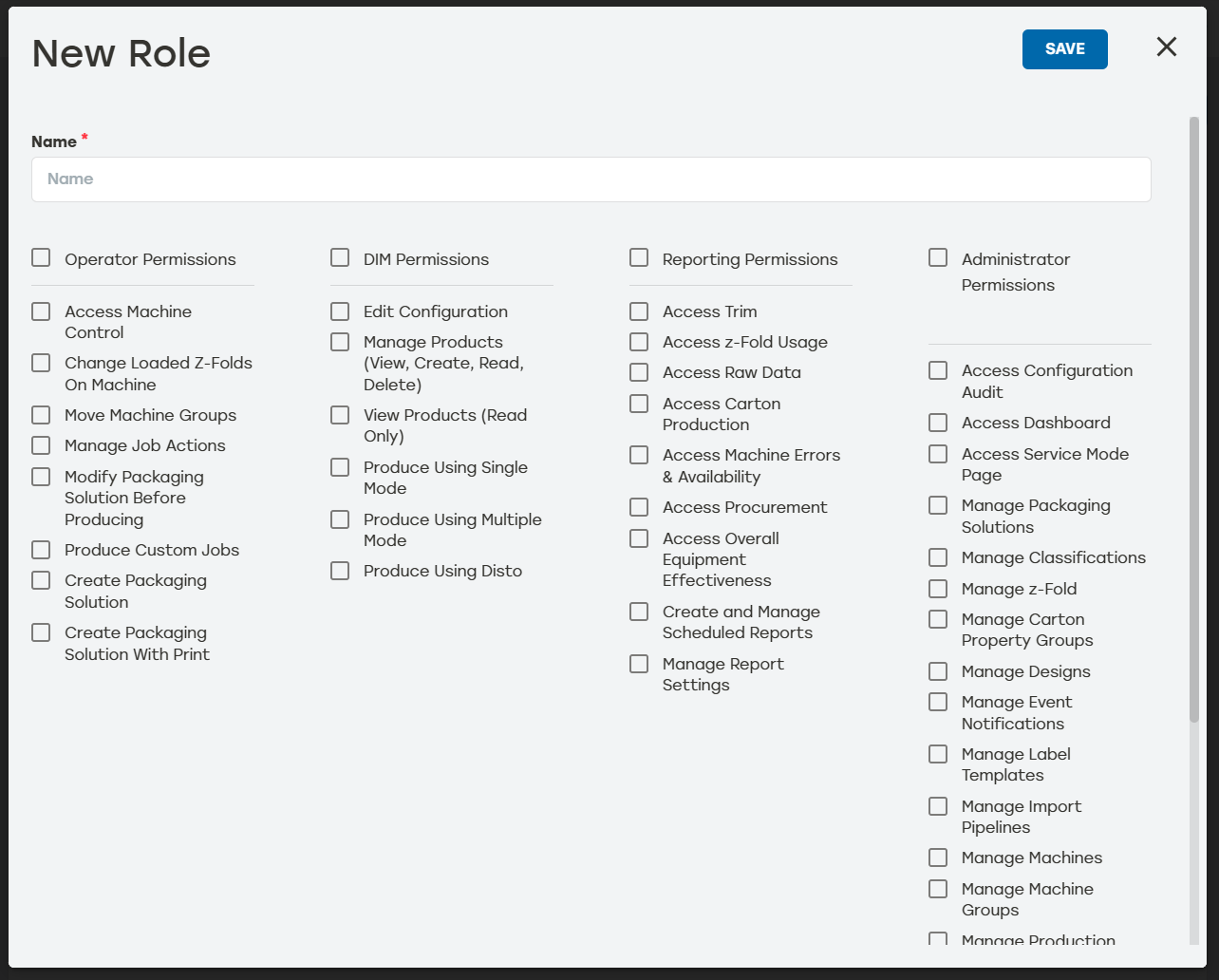
Enter the information as needed:
Name: Use a descriptive name. For example, when this is a team lead role, name it Team Lead.
Operator Permissions: Select the operator-level permissions that fit this role. When all these permissions apply to this role, simply select the checkbox at the top to select or unselect all.
Reporting Permissions: Select the reporting-level permissions that fit this role. When all these permissions apply to this role, simply select the checkbox at the top to select or unselect all.
Administrator Permissions: Select the administrator-level permissions that fit this role. When all these permissions apply to this role, simply select the checkbox at the top to select or unselect all.
Select Save to create the role.
Assign a Role
Roles are assigned to users from the User page. For more information on how users function in PackNet, see Users.
Go to the Users page.
Select the edit icon
 to the right of a user to edit their assigned roles.
Select the desired role(s) for that user.
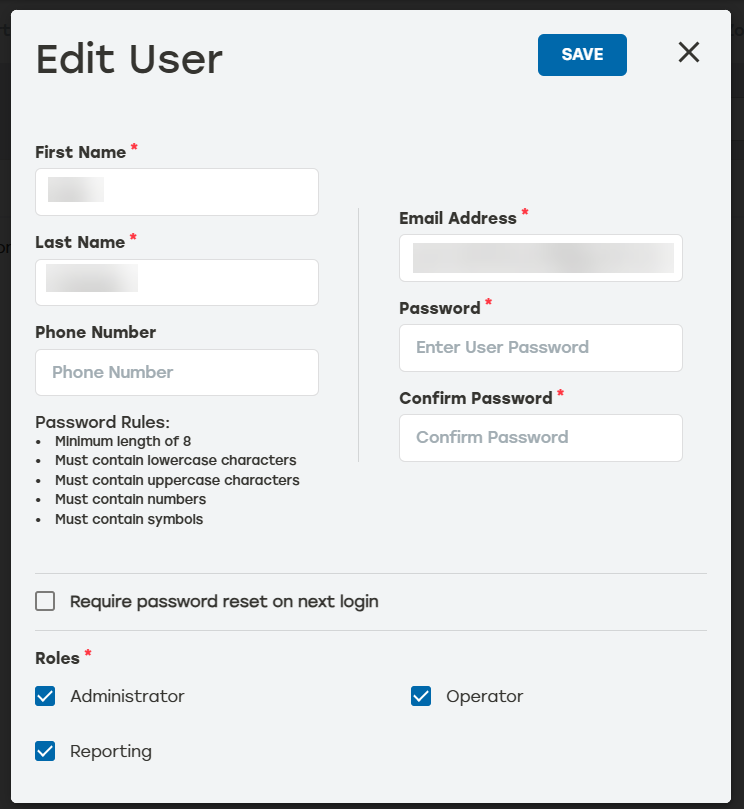
When done, select Save.
Edit a Role
Go to the Roles page.
Select the edit icon
to the right of the role that needs to be changed.Make changes as needed.
Select Save.
Delete a Role
Go to the Roles page.
Select the delete icon
 to the right of the role that needs to be deleted.
A dialog will appear asking to confirm deletion. Select Yes.
Make sure that the deleted role no longer appears on the Roles page.