Pick Zones
Pick Zones are areas within a packaging flow where specific items or groups of items are located. Usually, these locations have conveyor systems that loop through them. In a large packaging workflow, Packsize machines can be setup to work with one or more specific Pick Zones.
Pick Zones can be in the following states:
Normal: These packages have a normal priority and will be produced after expedited cartons
Stop: These packages will not be produced while in the stop state
Add a Pick Zone
On the Pick Zones page, select Add New.
Enter information for the pick zone as needed:
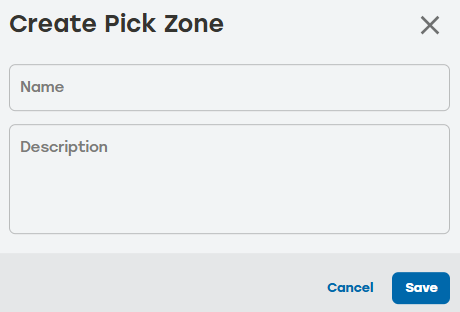
Pick Zone Name: This can be either a system-assigned name, or something that identifies clearly which pick zone this is (e.g., PZ1).
Description: This is helpful when users have more than one pick zone. Users can add additional information to differentiate this pick zone from any others.
When done, select Save.
Pick Zones History
Go to the Pick Zones page.
Select the history icon
 to the right of the desired pick zone to review the data.
Date: The date the entry happened
Type: The type of item listed in the entry
Activity: A brief description of the action
User: The PackNet user who completed the action
Select the arrow icon
 for a detailed view of the activity.
Select anywhere outside the Pick Zone History dialog to return to the Pick Zones page.
Edit a Pick Zone
Go to the Pick Zones page.
Select the edit icon
 to the right of the pick zone that needs to be edited.
Make changes as needed.
Select Save.
Delete a Pick Zone
Go to the Pick Zones page.
Select the delete icon
 to the right of the pick zone that needs to be deleted.
A dialog will appear asking to confirm deletion. Select Yes.
Make sure that the deleted pick zone no longer appears on the Pick Zone page.