Configuration
Attributes
Attributes allow users to better define the uniquenesses of a specific product by selecting certain product attributes that are beneficial to the packaging of the product as a single item or as part of a multi-item order.
Product attributes are frequently utilized alongside Cubing or Cartonization software to determine the optimal carton and product placement within the packaging, based on the defined attributes of each product. It is essential to review the capabilities of Cubing applications when identifying the necessary product attributes within PackNet DIM.
The Attributes tab provides a list of generic attributes that can be applied to a product. Custom attributes can also be created when the generic attributes don't adequately define an aspect of the product.
For a description of what each attribute specifies, see JSON Properties.
Create a Custom Attribute
Attributes can't be deleted or edited from the PackNet DIM UI once they have been created.
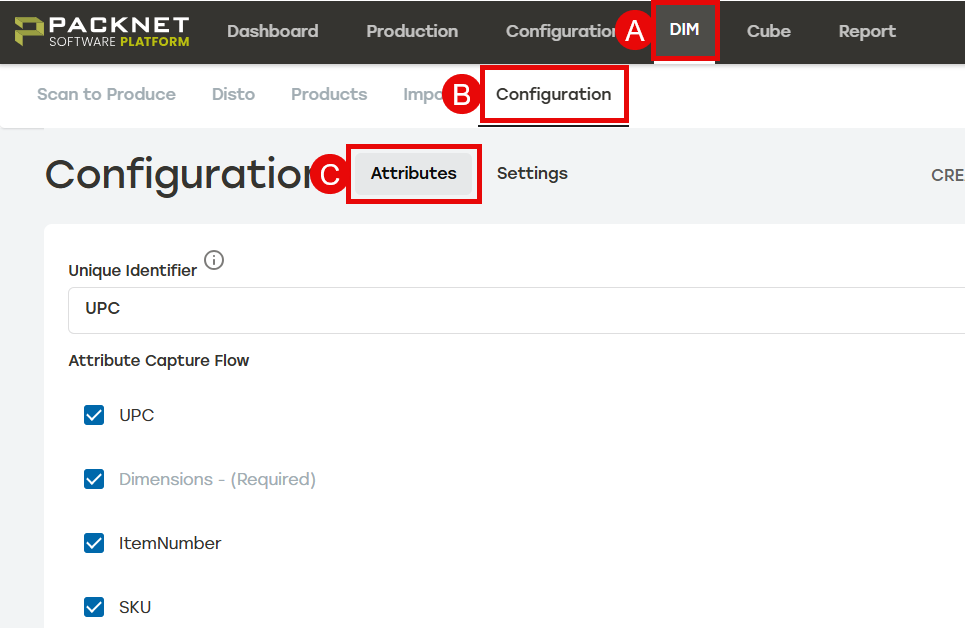
Go to Attributes within the Configuration tab of PackNet DIM.
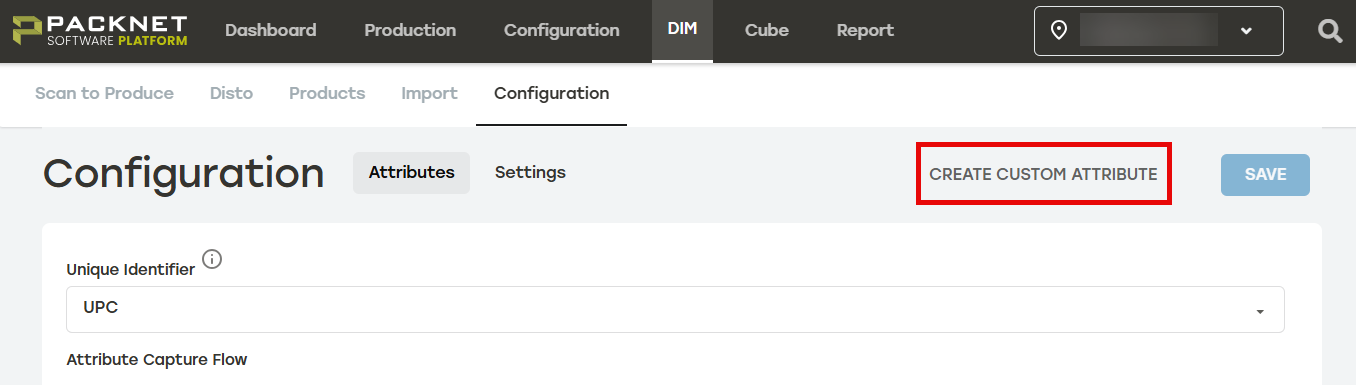
Select Create Custom Attribute.
Enter the information as needed.
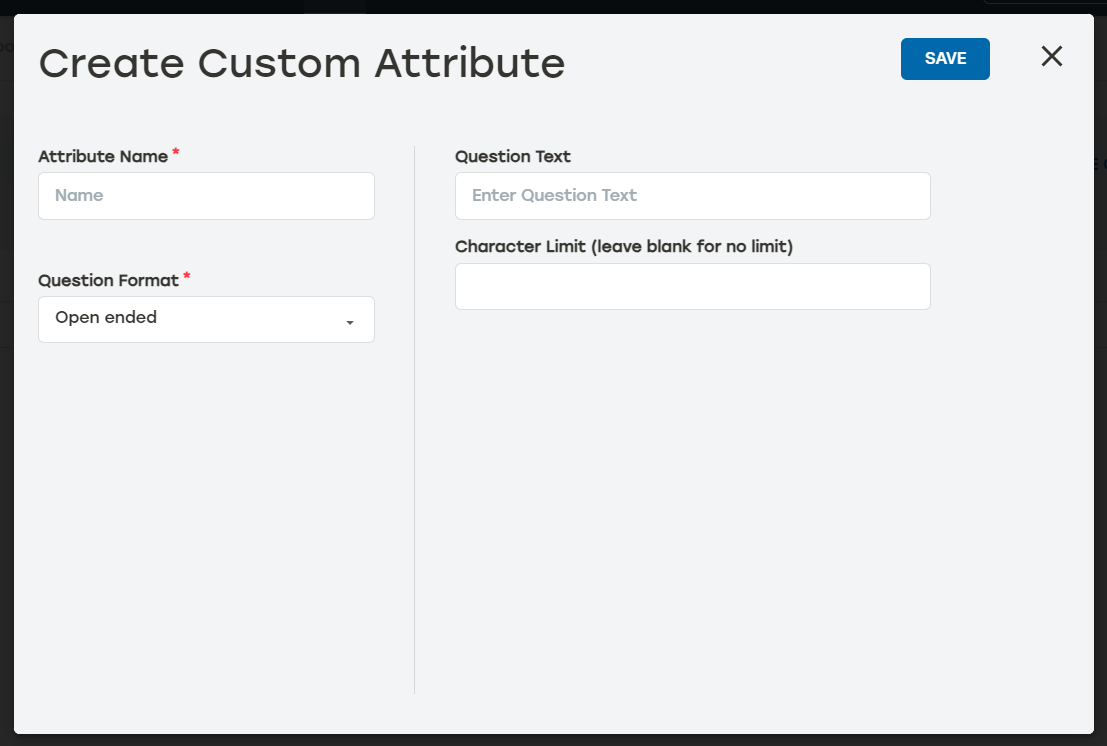
Attribute Name (required): This is the name that identifies the attribute in the products.
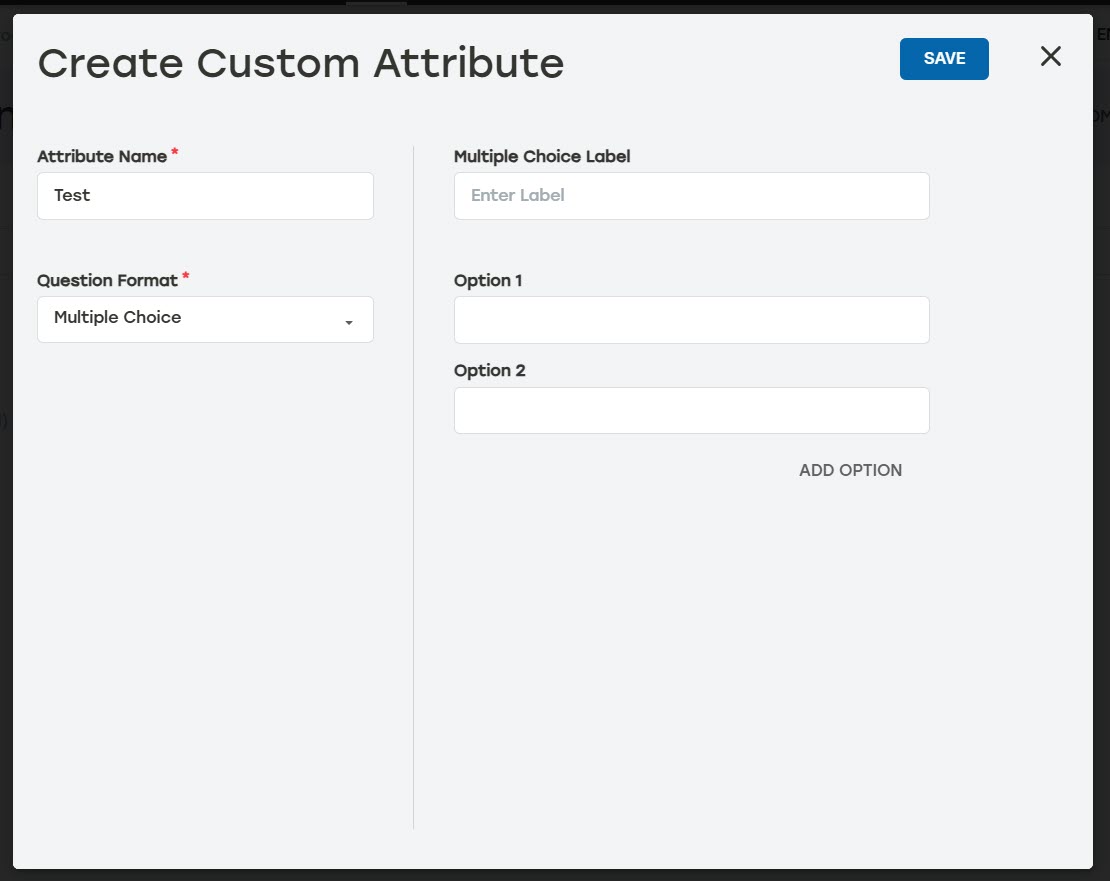
Question Format (required): The input method for adding product information. This can be Open ended or Multiple Choice.
Question Text: When Open ended is selected, this text will be the prompt that appears as the user edits or adds a product. This field is optional.
Multiple Choice Label: When Multiple Choice is selected, this text is the label and multiple choice options the user can select while editing or adding a product. The Create Custom Attribute dialog updates when this is selected. All multiple choice fields are required when this options is selected.
Character Limit: The number of characters users can add when entering an Open ended attribute. This field is only available when Question Text is selected.
Select Save when finished. That attribute can now be selected from the list.
After all custom attributes have been created, the arrows across from each attribute can be used to change the order in which attributes are collected in the manual capture flow.
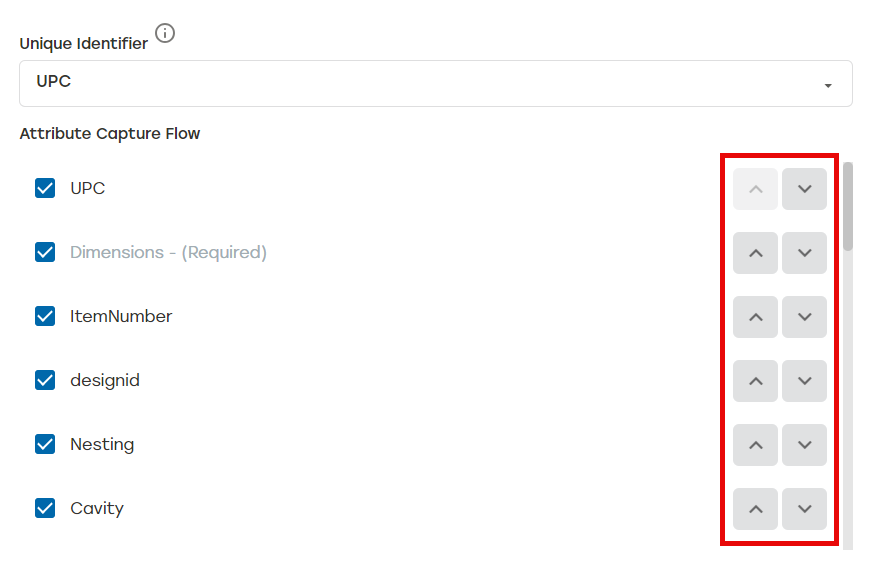
To remove an attribute from the Products page, uncheck the box to the left of that attribute.
Once changes have been made, select Save. A Saved notification will appear to the left of the Save button indicating the change has been put into effect.
DIM comes equipped with many built in attributes users can select to use when creating products. While these attributes come included in PackNet DIM's Attribute Capture Flow, they may be turned off at any time. The only attributes that are required are the Unique Identifier and Dimensions.
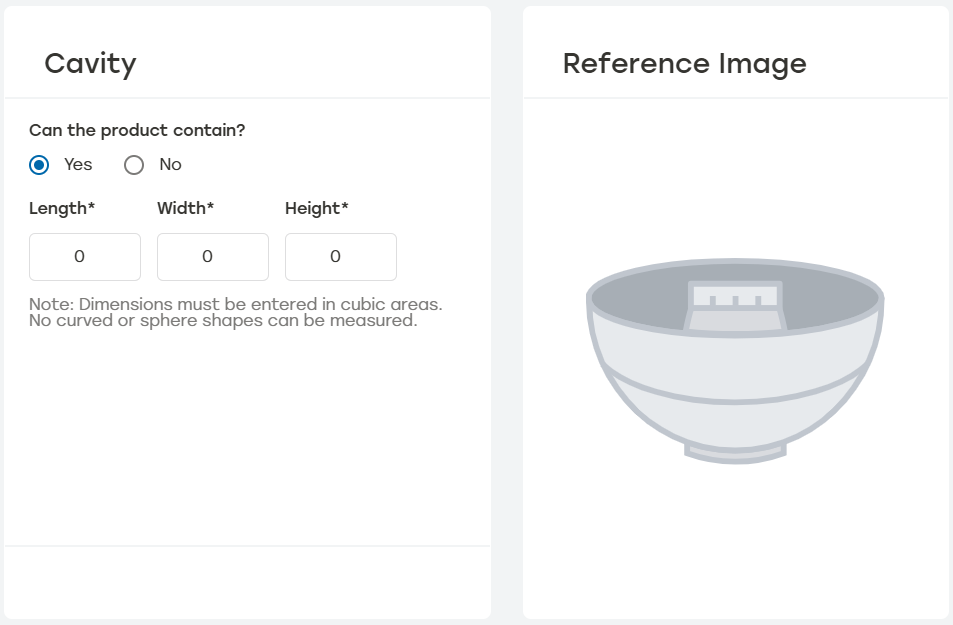
Cavity Fill - Allows a smaller item to fit within the cavity of the larger item. Dimensions for the cavity are required.
Comment - Allows the user to make a comment about the product.
Description - Allows the user to enter a description to identify the product.
Dimensions (L, W, H) - The dimensions for the product or products being packaged in this job. This is a required field.
EAN - European Article Number is a unique identified primarily used in Europe.
GTIN - Global Trade Item Number is a globally recognized unique identifier. DIM has options for GTIN, GTIN_8, GTIN_12, GTIN_13, and GTIN_14.
ISBN - International Standard Book Number is a way to identify books numerically. DIM has options for ISBN, ISBN_10, and ISBN_13.
ItemNumber - The unique item number assigned to the product in PackNet.
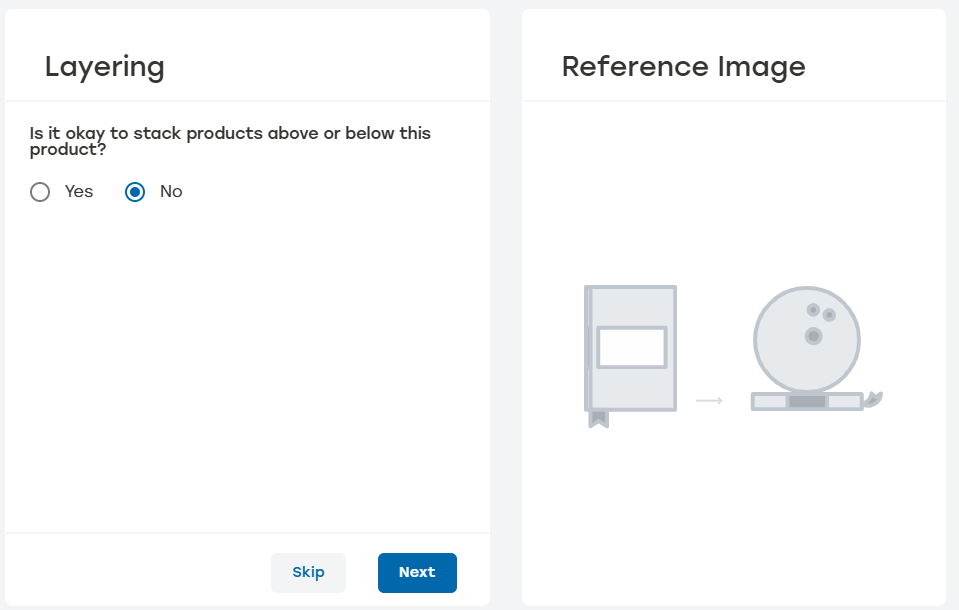
Layering - Allows other products to be stacked above or below the product.
Manufacturer - Allows the user to add the name for the manufacturer of the product.
MPN - Manufacturer Part Number is an alphanumeric code assigned by a manufacturer
Name - Allows the user to add a name to the product.
Nesting - Allows one or more of the same item to be stacked inside itself (i.e., plastic cups, chairs). Nesting Dimensions and the Nesting Level Max are required when using this attribute.

Orientation - Allows the user to specify how a product sits as it is placed into a carton. When the orientation of a product is locked, cartonization software must make sure that all packaging solutions will accommodate the product in the specified direction. Users must first input the product's dimensions in the Dimension attribute field. Choosing an orientation will automatically reorder the dimensions accordingly. Orientation is always locked based on the height dimension.

Padding - Adds an amount of padding to go around the product. DIM adds the padding to every side of product. Users can select when the padding is the default padding or a unique padding amount. The default padding amount is established in Configuration > Settings >Attribute Settings.

Product Image - Allows the user to add an image link of the product.
Quantity - The number of that product that will be included in the job.
SKU - Stock Keeping Units is the unique identifier from a company’s inventory system
Supplier - Allows the user to add the name for the supplier of the product.
SupplierNumber - Allows the user to add a supplier number to the product.
UPC - Universal Product Code is a 12-digit code that identified products and their manufacturers.
Weight - The weight of the product going into the carton.