Logging into PackNet
Customers require login credentials to access PackNet. There are two methods for logging into PackNet: using a username and password or using Single Sign-On (SSO).
Logging in with Username and Password
A username and password will be provided by Packsize to a company administrator for initial access. User logins can then be created and managed by the administrator. Usernames and passwords are case-sensitive.
Using the touchscreen operator panel, go to PackNet by selecting the Google Chrome web browser icon on the desktop.
Enter the URL provided by Packsize in the browser address bar, and then select Enter.
In the Email box, enter a user email, and then select Next.
The Password box will appear. Enter the password, and then select Log In.
Logging in with SSO
Companies can set up Single Sign-On to use their own Identity Provider (IdP) credentials to log in to PackNet. When this is configured, users will be rerouted to the company IdP to log on.
Using the touchscreen operator panel, go to PackNet by selecting the Google Chrome web browser icon on the desktop.
Enter the URL provided by Packsize in the browser address bar, and then select Enter.
In the Email box, enter a user email, and then select Next.
Users will be redirected to their Identity Provider to complete the login process.
Note
When the user is not logged in to their SSO application, a prompt to enter a password will appear. Follow the prompts from the SSO to complete login.
Language Selection
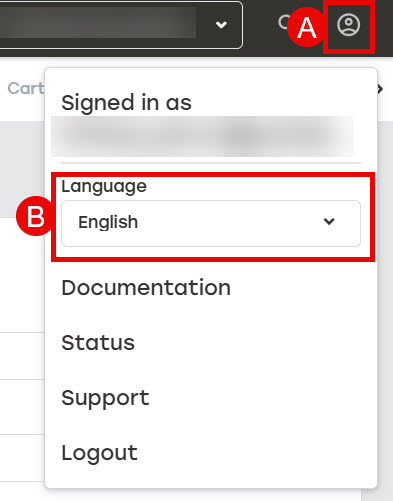
Users can set which language PackNet displays in. The selected language is saved to the browser, so users may have to select the language again when they switch browsers.
Select the user icon in the upper-right corner.
Select the desired software display language from the dropdown menu. PackNet will immediately display in the selected language.