Scenarios
Basic First In, First Out (FIFO)
Due to the nature of bale optimization and multiple machine management, PackNet is only able to adhere to a FIFO flow with a single machine group to production group model and a fixed bale (all available bales are always loaded on the machine). When the machine runs out of z-Fold and the customer does not reload the bale, the FIFO will not be maintained. PackNet will not hold the machine to wait for a single carton; it will skip the carton that cannot be produced and wait for the z-Fold to be loaded.
On the Import Pipeline page, go to Mapping.
Map customer data to PackNet Packaging Solutions.
Go to Production Groups.
Create or edit the desired production group.
Select the following Filters and Sorts in the production group.
Filters should be By Optimal Production.
Sort should be By Import Date.
Select Save.
Send test import data or create work in the UI.
Start the machine group.
Ensure that the first item imported is produced first.
Box Last
On the Import Pipeline page, go to Mapping.
Map customer data to PackNet Packaging Solutions.
Go to Rules, and then select Add Rule.
Enter the rule information as needed.
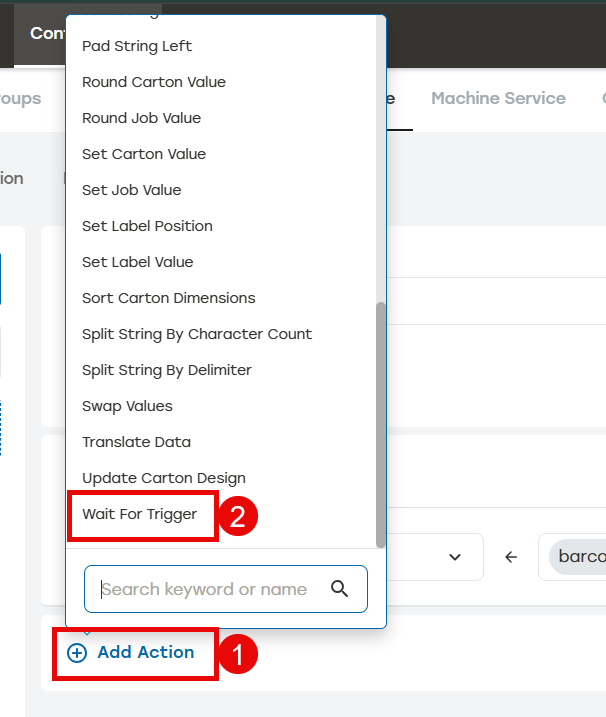
Select Add Action, and then select Wait for the Trigger.
Go to Production Groups.
Create or edit the desired production group.
Select the following Filters and Sorts in the production group.
Filters should be By Released For Production and By Optimal Production.
Sort should be By Released For Production Date
Send test import data or create work on the Packaging Creation page.
Start the machine group. No work should be produced.
Trigger a job.
Via the SelectionApi.
Use the Orders page.
Make sure that the first item triggered is produced first.
Packstations
On the Import Pipeline page, go to Mapping.
Map customer data to PackNet Packaging Solutions.
Go to Rules, and then select Add Rule.
Enter the rule information as needed.
Select Add Action, and then select Wait for the Trigger.
Go to Machines.
Create or edit the desired EM machine.
Select Use Cross Conveyor.
Note
To avoid unexpected behavior, do not select Release Carton with Foot Pedal.
Go to Production Groups.
Create or edit the desired production group.
Select the following Filters and Sorts in the production group.
Filters should be By Released For Production and By Pack Station.
Sorts should be By Released For Production Date.
Send test import data or create work on the Packaging Creation page. When creating work from Packaging Creation, the Packstation has to be selected in the Location dropdown.
Start the machine group. No work should be produced.
Push the foot pedal at the packstation to start production.
The machine will wait for the next foot pedal press before producing the next packaging solution.
One Label per Batch
On the Import Pipeline page, go to Import Selection.
Enter a header titled Quantity. The Quantity header will be automapped to PackNet field Quantity.
Go to Rules, and then select Add Rule.
Enter the rule information as needed.
Select Add Action. Attach a label by selecting any of the following rules that create a new label for the packaging solution:
Add Standalone Label
Add Label to Carton
Add Carton
Select One to Many, and then select Save.
Import a job ensuring the Quantity header is greater than 1.
A single label will be produced for the entire batch.