Settings
Within PackNet, server settings must be configured correctly for the software to communicate with any machines on the network. Make sure these server settings are correct before continuing the setup of PackNet.
Important
Do not change any server settings unless instructed to do so. Changing these settings may render the software unable to communicate with both the server appliance and any Packsize machines on the network.
 |
General Settings
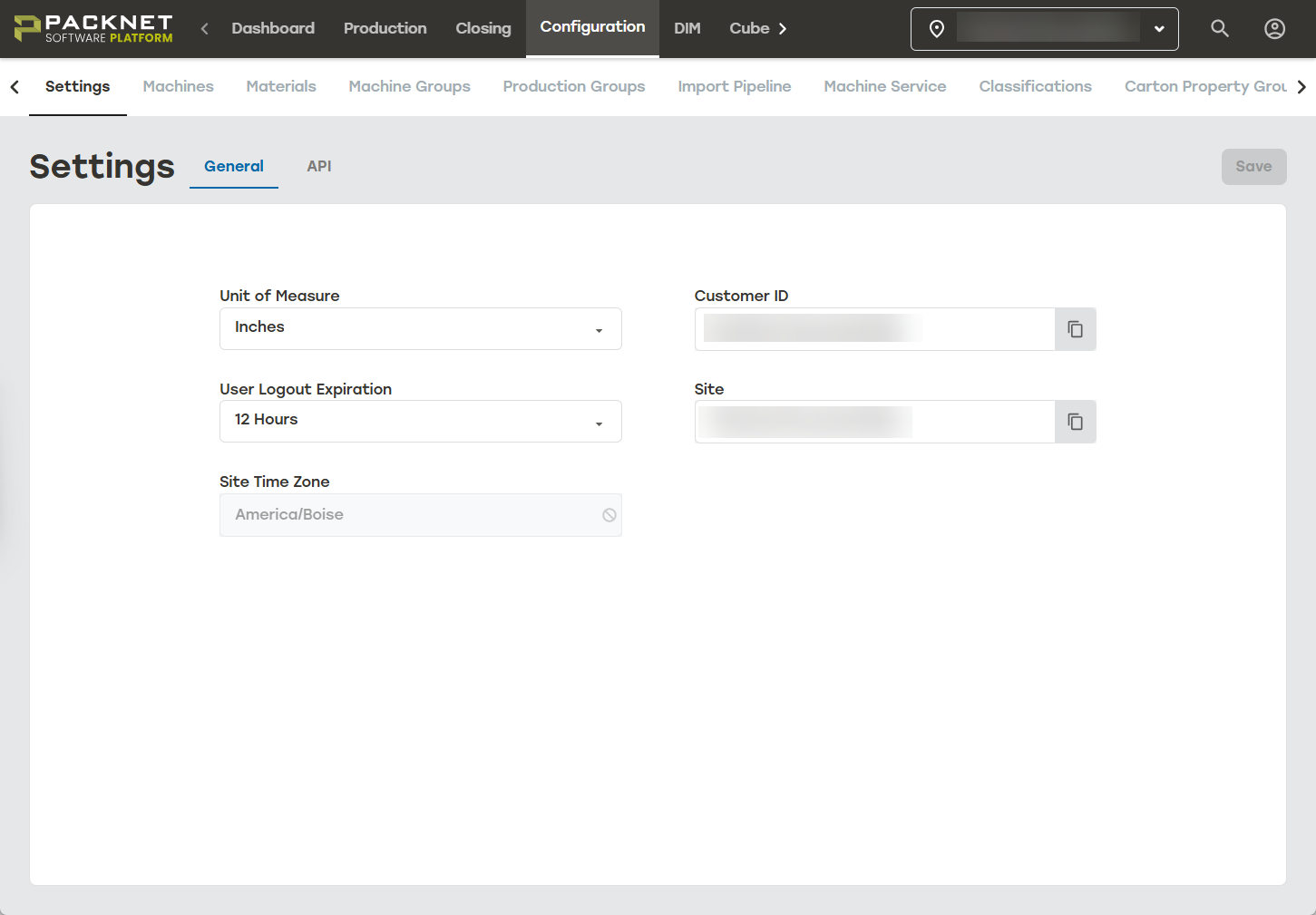
There are several settings available on the General tab. Only the Unit of Measure and User Logout Expiration settings are changeable by the user. For all other setting changes, contact Packsize personnel.
Edit General Settings
Select Configuration, and then Settings.
Select General. Review information and make the desired changes to editable fields.
Unit of Measure: The administrator can set the unit of measure to either inches or millimeters.
User Logout Expiration: Can be set to 12 hours or 24 hours. This setting is not an inactivity timer; after 12 or 24 hours has elapsed, the operator will be prompted to continue the session. When the operator does not continue the session, they will be logged out.
Disable Password Login: Forces users to use SSO when logging in to PackNet. This setting is recommended when SSO is configured. Users will only see this setting when SSO has been established for their tenant.
Customer ID: The value that identifies this customer in the Packsize system. It is configured at the time the tenant is set up and is not meant to change. Selecting the copy icon at the end of this field copies the value.
Company: The name used to identify the tenant. Selecting the copy icon at the end of this field copies the value.
Site Time Zone: The time zone for the site location. This value is set during initial customer setup and can't be changed by users. Contact Packsize to make adjustments to this setting.
Select Save.
API Settings
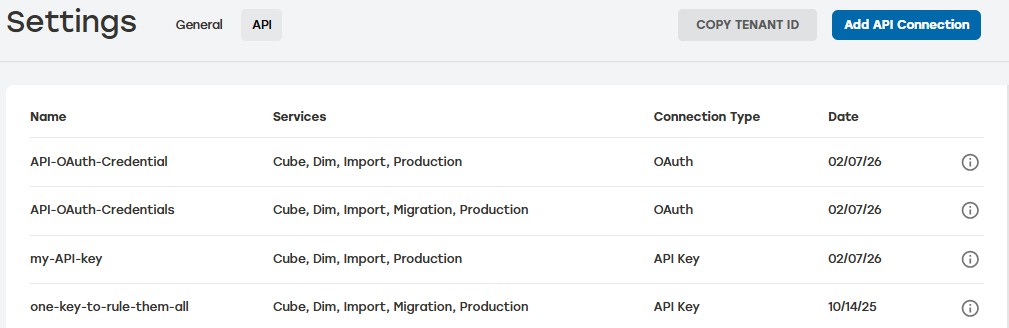
The API tab displays basic information on all the APIs that have been imported into the tenant including names, services, and import date. For more information, see PackNet Software Platform API Reference [SPEC-00295].
 |