Dashboard Widgets
This section describes all of the widgets available in PackNet, but access to some widgets may be restricted based on the company subscription or the user’s permissions.
Note
Users must add Carton Property Groups on the Configuration tab for this widget to work. See Carton Property Groups for more information.
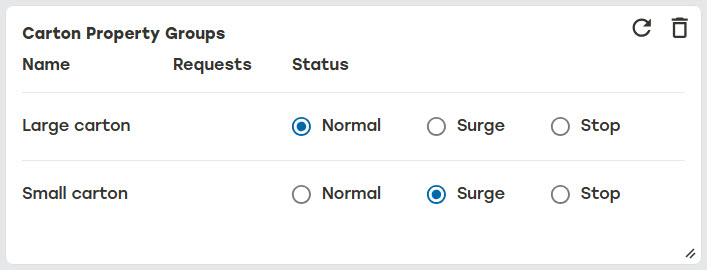
The Carton Property Groups widget allows a site manager to view the current number of cartons associated with each carton property group and control the flow of work via the status.
Carton property groups can be in a Normal, Surge, or Stop status.
Normal: Carton property groups try to maintain the production to a desired carton property group mix ratio.
Surge: Carton property groups will rapidly try to induct a configured number of cartons into production. Once the number of cartons has been produced, the group will automatically return to a Normal state.
Stop: Carton property groups will not produce any of the work associated with that group.
 |
Note
Users must add Classifications on the Configuration tab for this widget to work. See Classifications for more information.
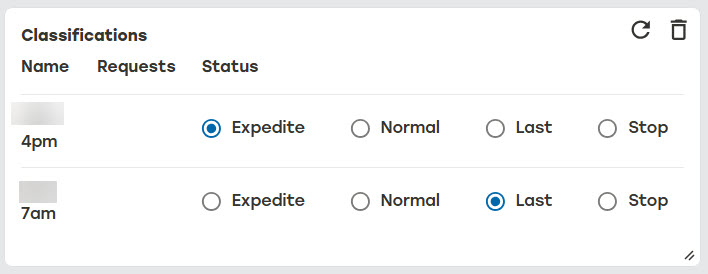
The Classifications widget is similar to the Carton Property Groups widget. It allows a site manager to control flow of cartons based on carton classifications.
Cartons can be in a Expedite, Normal, Last, or Stop status classifications.
Expedite: Cartons always have a higher priority than other classifications
Normal: Cartons are prioritized higher than Last classifications but lower than Expedite classifications
Last: Cartons have a lower priority than Expedite and Normal classifications
Stop: Cartons will not be produced
 |
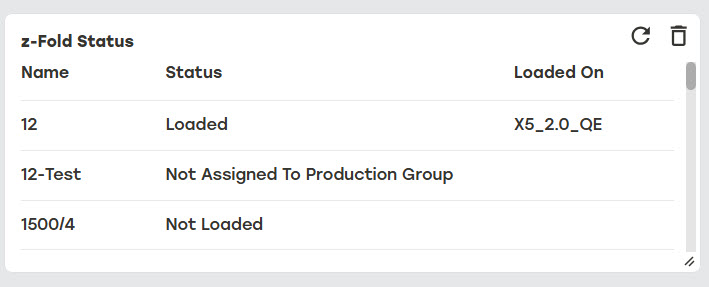
The z-Fold Status widget is a summary of the z-Folds in the system. It shows the z-Fold name, when the z-Fold is currently loaded on a machine, and which machines have it the z-Fold loaded. This is useful when understanding why certain cartons may not be producing.
 |
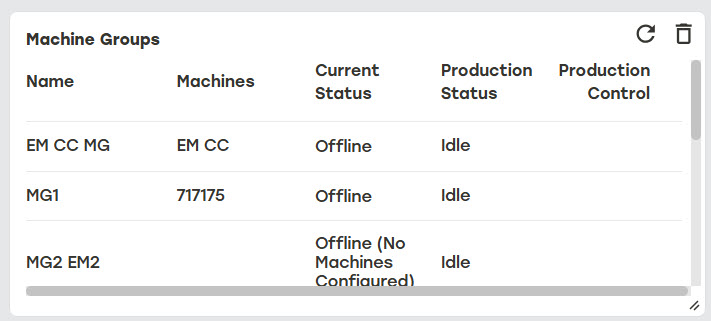
The Machine Groups widget is a summary of the configured machine groups. It shows the machine group name, the configured machines, the current status of the machine group, the production status of the machine group, and provides a quick icon to be able to put the machine group into Pause or Play.
 |
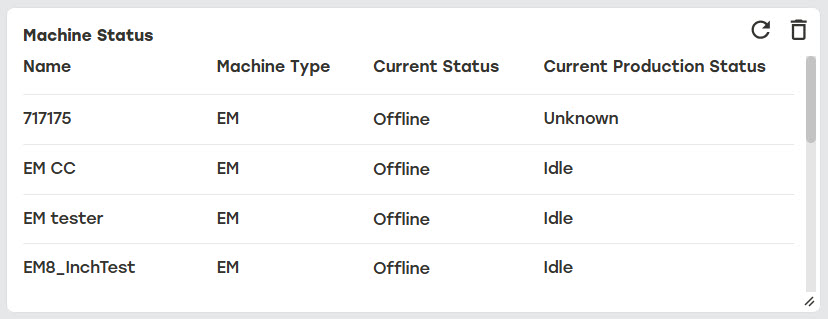
The Machine Status widget provides an overview of all of the machines in a production environment. The widget shows the name of the machine, the machine type, the current machine status, and the current production status.
When the Current Status column displays a warning or error icon, click the icon to see the warning or error message.
 |
Note
Users must add Pick Zones on the Configuration tab for this widget to work. See Pick Zones for more information.
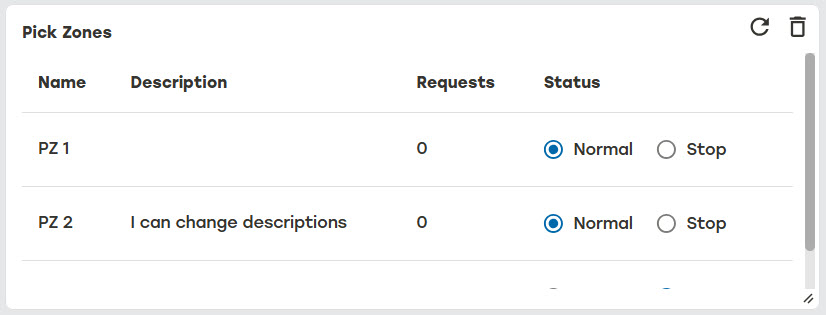
The Pick Zone widget allows users to view pick zones and change production flows by setting a pick zone status.
Pick zones can be in a Normal or Stop status.
Normal: Cartons in this pick zone will be produced after expedited carton
Stop: Cartons in this pick zone are stopped until the status is changed back to Normal
 |
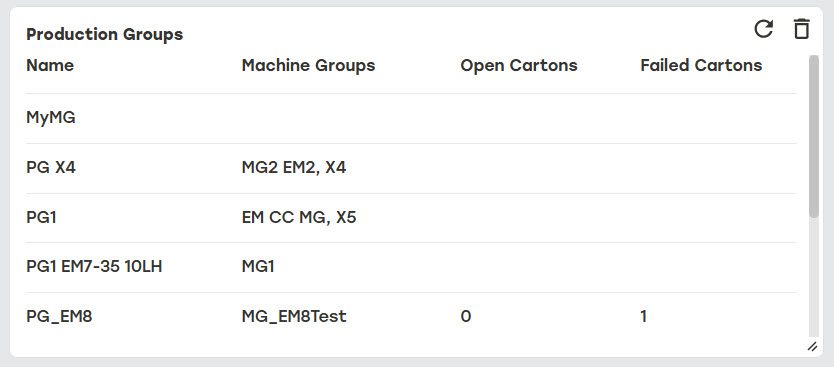
The Production Groups widget is a summary of the current production groups. It shows the name of the production group, the current machine groups that are working in the production group, the number of open cartons that need to be produced, and the number of failed cartons that have been imported but will not be created.
 |
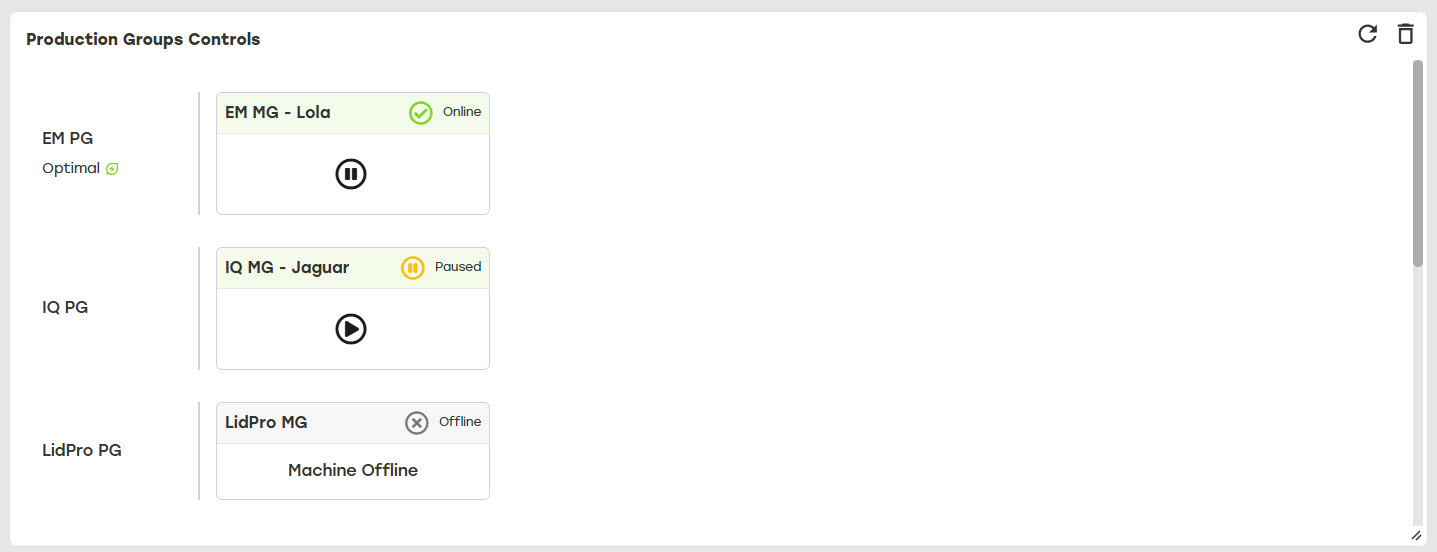
The Production Groups Controls widget provides the user a view of all production groups and machine groups in a single place. The widget shows the current state of each machine in the production group. When the production group has the By Optimal Production filter turned on, a small leaf icon will show next to the machine name. The buttons in the widget allow the user to quickly put the group into Play or Pause.
 |
The Selection Analytics widget shows critical metrics about each production group during the Selection stage of production.
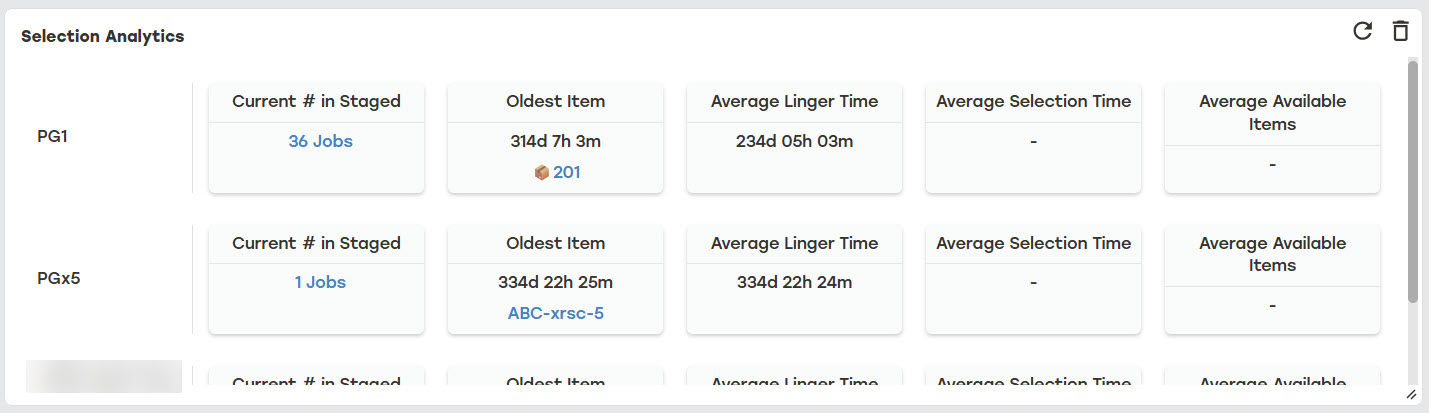 |
The widget shows the following metrics for each production group.
Current # in Staged: The total number of jobs that are Staged but not yet Selected. Selecting the number of jobs on this card opens the details about those jobs. Users can see full job details or remove a job by selecting the Actions menu. They can also remove multiple jobs by selecting the box the to right of the jobs to be deleted and selecting Remove Selected Jobs.
Oldest Item: The oldest job currently in the Selection queue based on the time a job has moved from Staging to Selected. When a job is reproduced, this time is reset to the current time.
Average Linger Time: The average time for Staged jobs to process through the production flow into Selection. This calculation shows, on average, how long it takes the system to process work.
Average Selection Time: Calculates the average time over the last 24 hours for the Selection Pipeline to run on a given packaging solution.
Average Available Items: Calculates the average number of jobs over the last 24 hours that were in a Staged state when Selection ran for this production group.
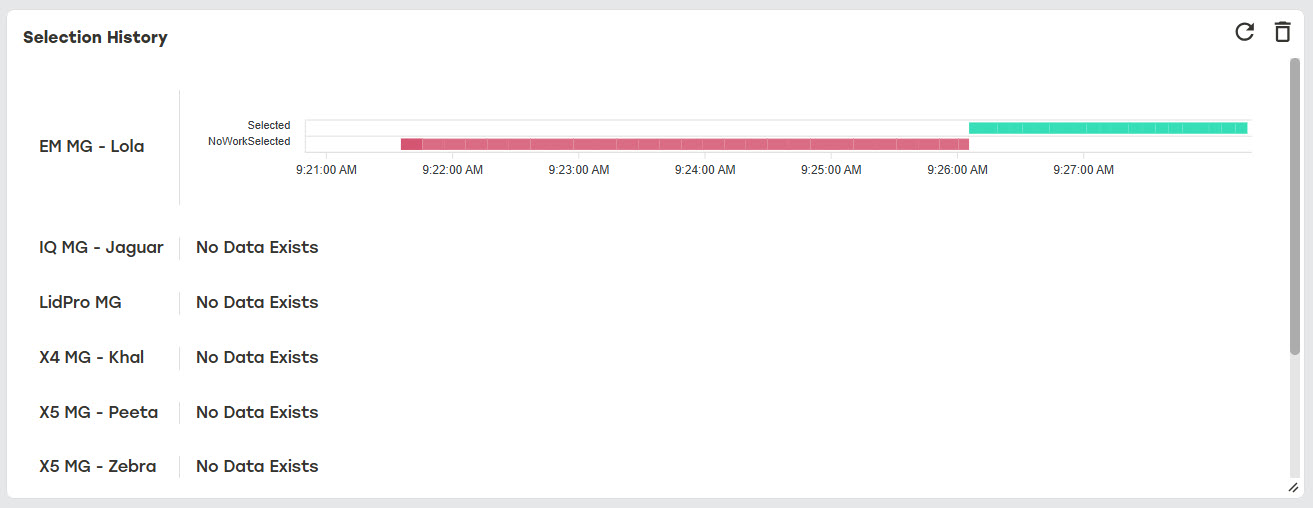
The Selection History widget is a view into recent carton production activity. The widget shows recent activity for each machine group making it easy to see when production is occurring.
 |
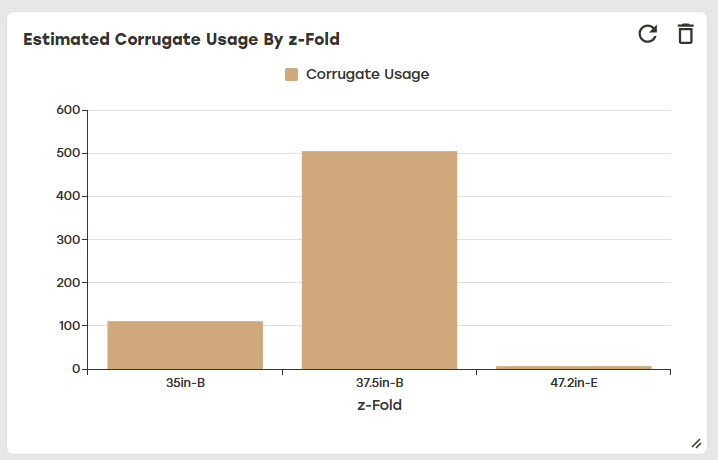
The Estimated Corrugate Usage widget helps the user to estimate the amount of corrugated material that will be used by jobs that are in the system but not yet produced. With this estimation, users can plan bale changes and predict immediate usage during carton production.
 |
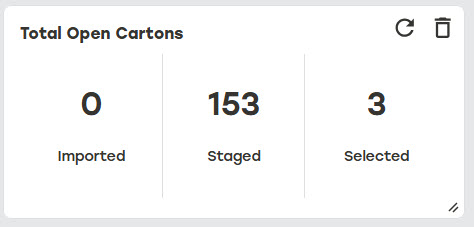
The Total Open Cartons widget displays the current number of jobs in each of the routing stages of production as jobs move from Imported to Staged to Selected. Once jobs have been produced, they are no longer represented in this widget.
 |
Note
Users must have By Optimal Production filter added to Production Groups for this widget to work. See Production Groups for more information.
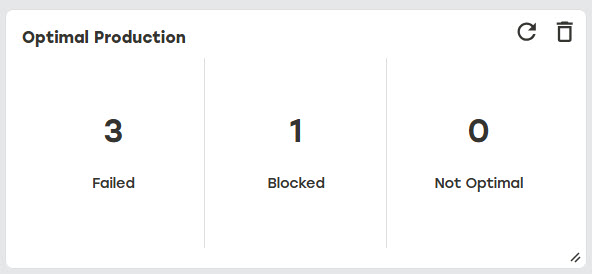
The Optimal Production widget shows the status of cartons that were affected by the Optimal Production filter.
Cartons shown on this widget will have a Failed, Blocked, or Not Optimal status.
Failed: The carton failed to produce
Blocked: The carton is blocked until the Optimal Production conditions are met
Not Optimal: The carton was produced with not optimal conditions
 |
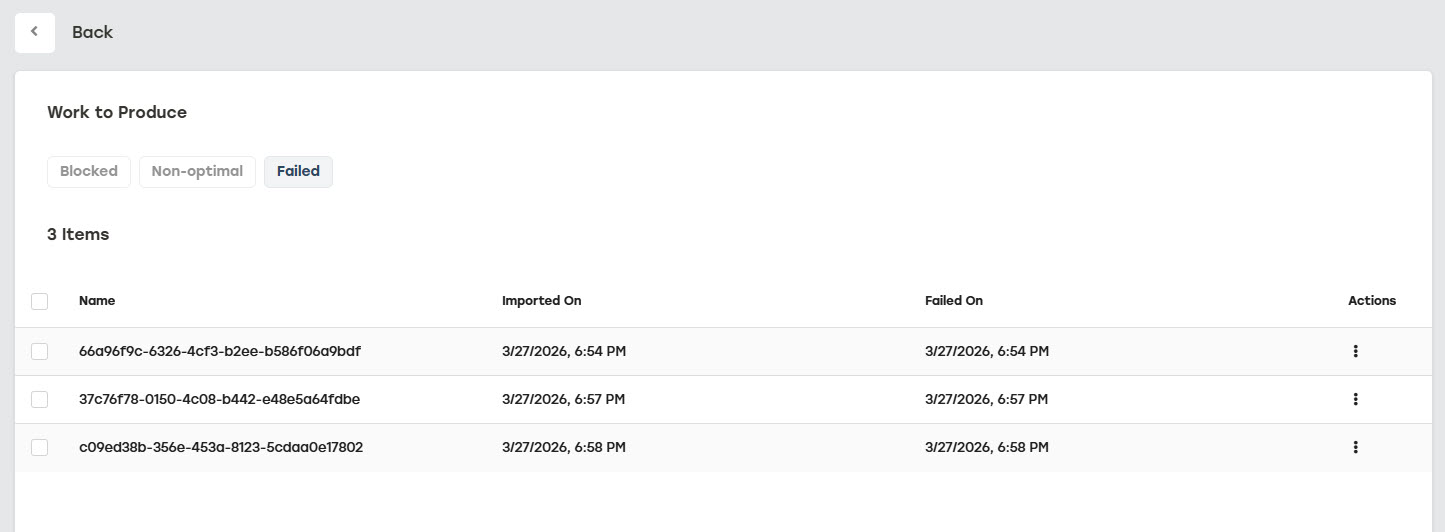
Selecting any of the statuses on the Optimal Production widget opens the Work to Produce page, which displays more detailed information about the cartons in each status. The Failed status page allows users to view the full details of each job failure or remove an entry when it no longer needs to be shown on the dashboard. These options are available under the Actions menu to the right of each failed job. Users can remove multiple jobs at once by selecting the box to the right of the job needing to be deleted and then selecting Remove Selected Jobs.
 |
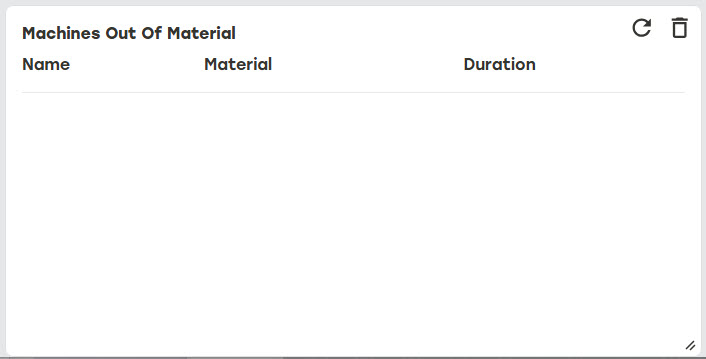
The Machines Out Of Material widget is a live view of any machine that has run out of z-Fold material. This gives the user a quick way to see the material that should be loaded into a machine in order to continue production.
 |