Status Bar
The status bar displays the current machine group, its status, and the play/pause icon. The status bar is accessible from every Production screen.
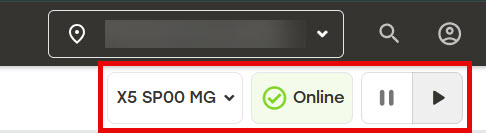 |
To pause machine production, select the pause icon  .
.
To continue machine production after pausing, select the play icon  .
.
Change Machine Group
To change the machine group, select the dropdown arrow next to the current machine group from the status bar. A list of available machine groups will display.
Select the desired machine group from the list.
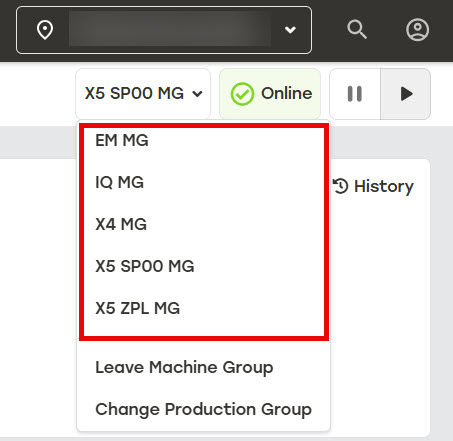
A dialog will appear asking for confirmation of the change. Select Yes.
Leave Machine Group
To leave a machine group, select the dropdown arrow next to the current machine group from the status bar. A list of available machine groups will display.
Select Leave Machine Group.
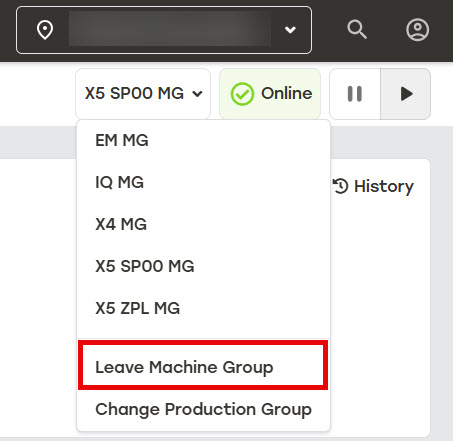
A dialog will appear asking for confirmation of the change. Select Yes.
Change Production Group
Important
Changing production groups moves the selected machine group into a different production group. Doing so can negatively impact the way jobs are produced. See Production Groups for more information.
To change the production group, make sure the desired machine group is selected in the status bar, and then select the dropdown arrow next to the machine group.
Select Change Production Group.
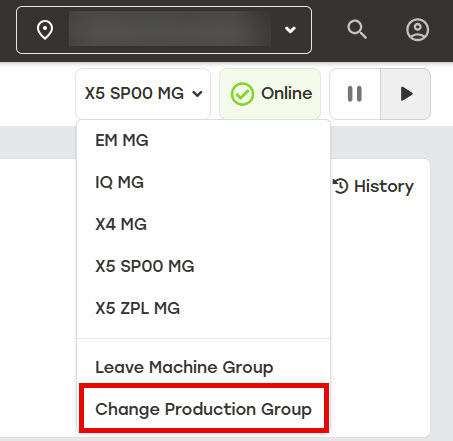
A dialog will appear asking for confirmation of the change. Select Yes.
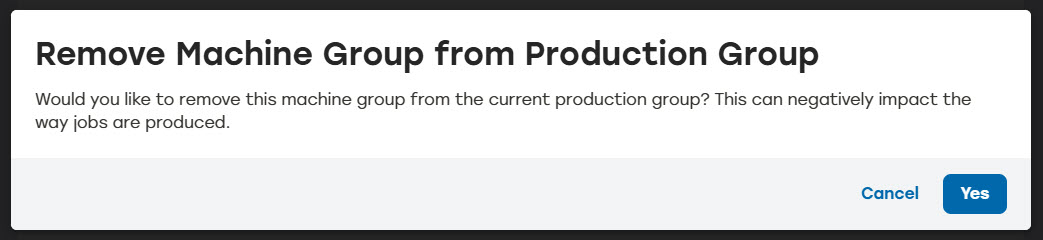
Upon confirmation, a screen with all production groups will be displayed.
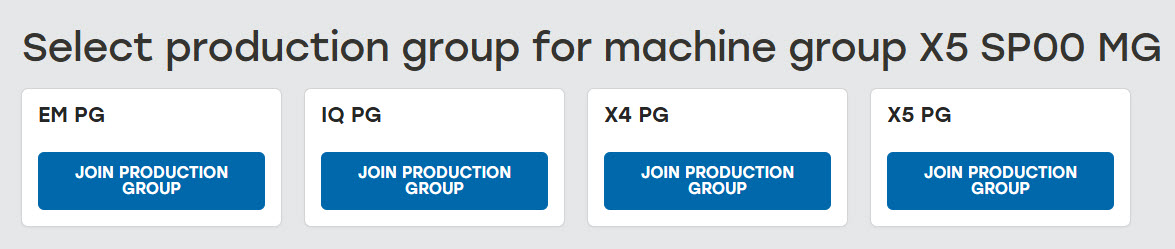
Select Join Production Group for the desired production group. The machine group will be moved to that production group.