Scheduled Reports
Scheduled Reports allows users to create a PDF version of Carton Production, z-Fold usage, and Trim reports found in PackNet Report. These reports are sent to PackNet users' emails daily, weekly, or monthly depending on the frequency selected.
The ability to export reports from Scheduled Reports requires the appropriate permissions.
 |
Individual users who no longer wish to receive these reports can unsubscribe by selecting the unsubscribe link in the email and following the prompts. Unsubscribed users will be removed from the Scheduled Report's list of recipients.
Create a Scheduled Report
Go to Scheduled Reports page.
Select Create New.
Enter a name for the report. This is how the report is identified on the Schedule Reports page.
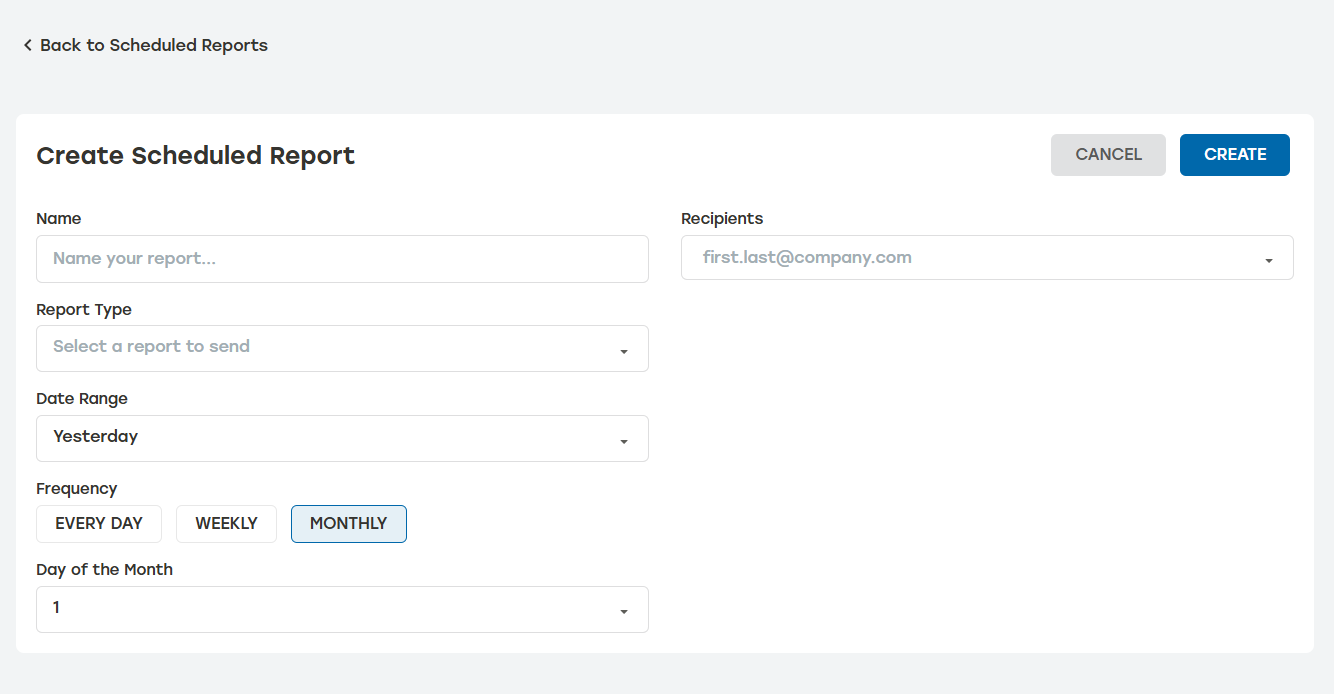
Choose the Report Type from the Select a report to send menu.
Select the Date Range the report will show.
Select the frequency for report delivery.
When Weekly is selected, users can choose which day of the week the report will be delivered on.
When Monthly is selected, users can choose which day of the month the report will be delivered on.
Enter the report recipients. These must be PackNet users.
Select Create.
Edit a Scheduled Report
Go to the Scheduled Reports page.
Select the edit icon
 to the right of the report that needs to be edited.
Make changes as needed.
The Enabled switch makes the report active. Select Disabled to keep report settings but stop the report from being sent.
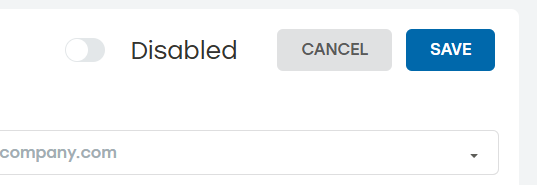
Select Save.
Delete a Scheduled Report
Deleting a scheduled report will permanently delete the report settings from PackNet Report. Setting the scheduled report to Disabled will stop the report from being sent but won't delete the settings from PackNet Report.
Go to the Scheduled Reports page.
Select the delete icon
 to the right of the report that needs to be deleted.
A dialog will appear asking to confirm deletion. Select Delete.
Make sure that the deleted report no longer appears on the Scheduled Reports page.