Adding a New Product
Go to the Products tab within PackNet DIM.
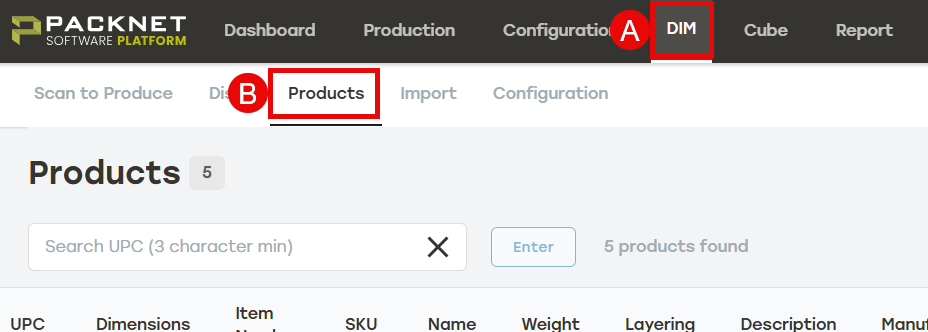
Select the Add products menu.
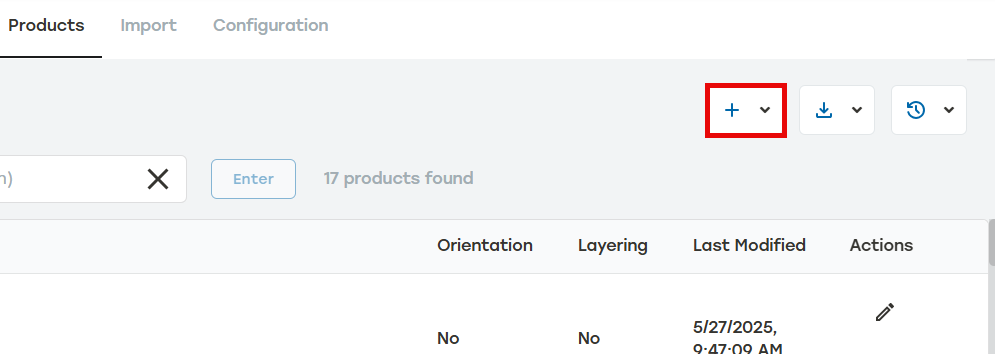
Select Add single product.
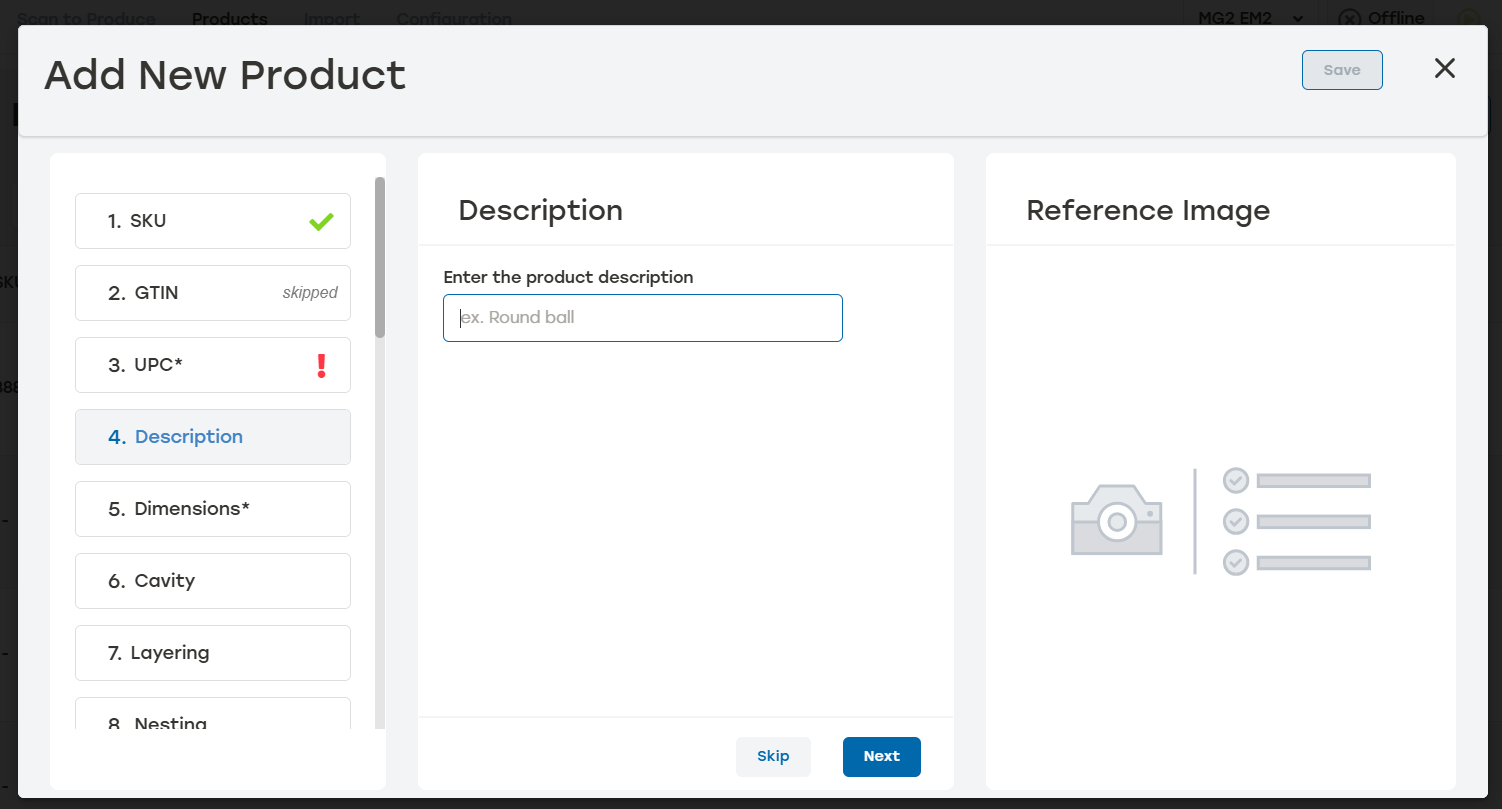
Enter the product name. Select the Enter key or select Next on each screen to continue to the next step. An icon will appear next to the attribute indicating when it has been added, skipped, or missed.
Note
The attributes that must be defined when adding a new product depend on what attributes are selected in the Configuration page.
Enter the Unique Identifier (required) selected in Required First Time Configuration.
Enter the product dimensions. Dimensions are required and all values must be greater than zero.
Additional fields may be available depending on what Configuration settings.
Select whether or not the product can contain another product.
Select whether or not the product can stack on another product.
Select whether or not the product can nest within another product.
Select the product orientation from the drop down.
Enter any other attributes defined in the Configuration section.
Enter the product weight. Select Save.