OAuth 2.0 Authentication (Recommended)
OAuth 2.0 provides enhanced security with token-based authentication, automatic expiration, scope-based permissions, and secure credential management. This authorization method is recommended for new integrations and customers seeking enhanced security.
Users will need to create OAuth credentials in PackNet before using the OAuth authentication method with the PackNet API Gateway.
Log in to PackNet Software Platform.
Go to Configuration > Settings > API.
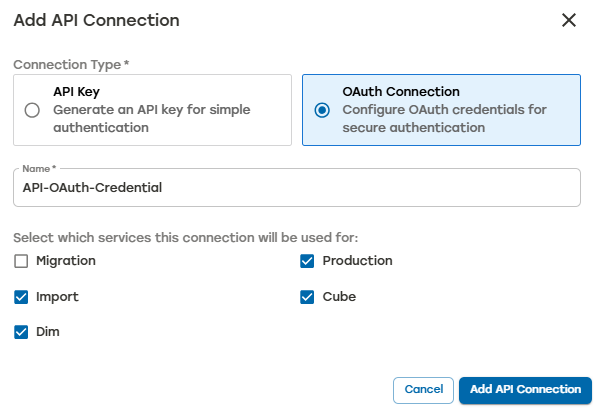
Select Add API Connection.

Select OAuth Connection.
Enter a name for the OAuth client.
Select the API services the OAuth credentials will be used for:
Migration
Import
Dim
Production
Cube
Select Add API Connection.
Copy the Client ID and Client Secret and store the Client Secret securely for future use.
Important
The Client Secret will only be displayed once and cannot be retrieved later. It should not be shared.
Once created, the API connection will be shown in the API list with the name and services specified, Connection Type = OAuth, and created date.
OAuth credentials (Client ID and Client Secret) remain valid and do not expire unless they are explicitly revoked by deleting them from PackNet. Multiple OAuth credentials can be generated as needed.
Copy Client ID
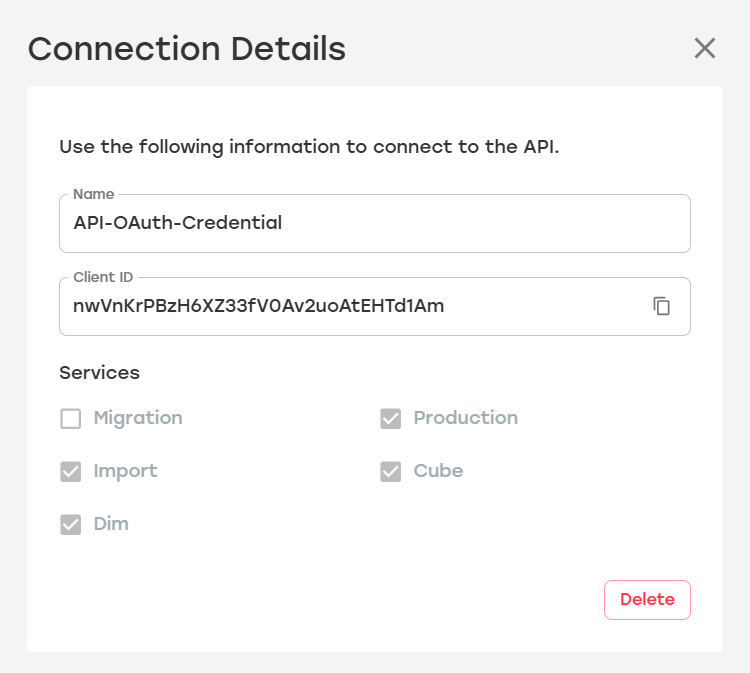
The Client ID can be copied at a later time if needed. The Client Secret will only be displayed once during OAuth credential creation.
To copy the Client ID:
Log in to PackNet Software Platform.
Go to Configuration > Settings > API.
Select the information icon next to the OAuth credentials.
Copy the Client ID.
Obtain an Access Token
When using OAuth credentials as the API authorization method, an access token will need to be obtained before making the API call to PackNet.
An access token provides secure, temporary verification of the OAuth identity and permissions, allowing the API Gateway to authenticate API requests without exposing the actual OAuth credentials.
Note
Tokens expire automatically after 24 hours (86400 seconds). Request a new token when the current one expires.
To obtain an Access Token, make the following API request then copy the access_token for use in PackNet API Gateway requests.
[POST] https://api.prod1.packnet.app/oauth/token
{
  "client_id": "YOUR_CLIENT_ID",
  "client_secret": "YOUR_CLIENT_SECRET",
  "grant_type": "client_credentials",
  "audience": "https://api.prod1.packnet.app"
}{
"access_token": "YOUR_ACCESS_TOKEN"
}How to Use the Access Token
The OAuth 2.0 Authentication method requires the access token to be included in the API Authorization header with the Bearer prefix.
CURL Samples
In the below CURL samples, YOUR_ACCESS_TOKEN is the access token generated using the OAuth ClientID and Client Secret.
Windows PowerShell
Windows expects double quotes (" "). PowerShell uses backticks (`) for multiline commands.
curl --location "https://api.prod1.packnet.app/Dim/v1/Import" `
  --header "Authorization: Bearer YOUR_ACCESS_TOKEN" `
  --header "Content-Type: application/json"
Windows CMD (Command Prompt) CURL Header Sample
Windows expects double quotes (" "). CMD doesn’t support multiline.
curl --location "https://api.prod1.packnet.app/Dim/v1/Import" --header "Authorization: Bearer YOUR_ACCESS_TOKEN" --header "Content-Type: application/json"
Linux and MAC CURL Header Sample
Linux and MAC expect single quotes (' '). Use backslash (\) for multiline commands.
curl --location 'https://api.prod1.packnet.app/Dim/v1/Import' \
--header 'Authorization: Basic YOUR_ACCESS_TOKEN' \
--header 'Content-Type: application/json'
Important
Do not delete an API connection unless instructed to do so. Deleting an API connection from the tenant immediately revokes access for all applications using it and can negatively impact the way jobs are produced.
Go to Configuration > Settings > API and locate the OAuth credentials.
Select the information icon next to the OAuth credentials to be deleted.
Select Delete.
A dialog will appear asking to confirm deletion. Enter delete into the textbox, and then select Delete.
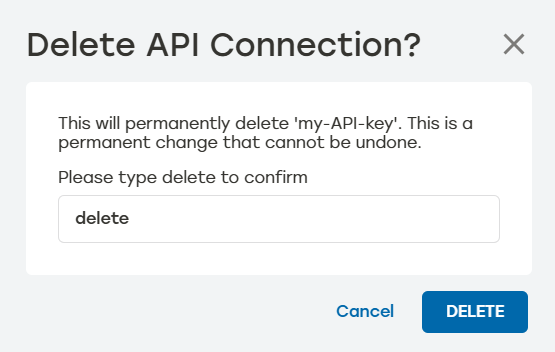
Confirm the OAuth credentials deletion.