Custom Attributes Feature
Custom attributes allow users to capture custom metadata at job level and carton level via Import Pipeline rules. This data appears in the Raw Data tab.
Key Requirements
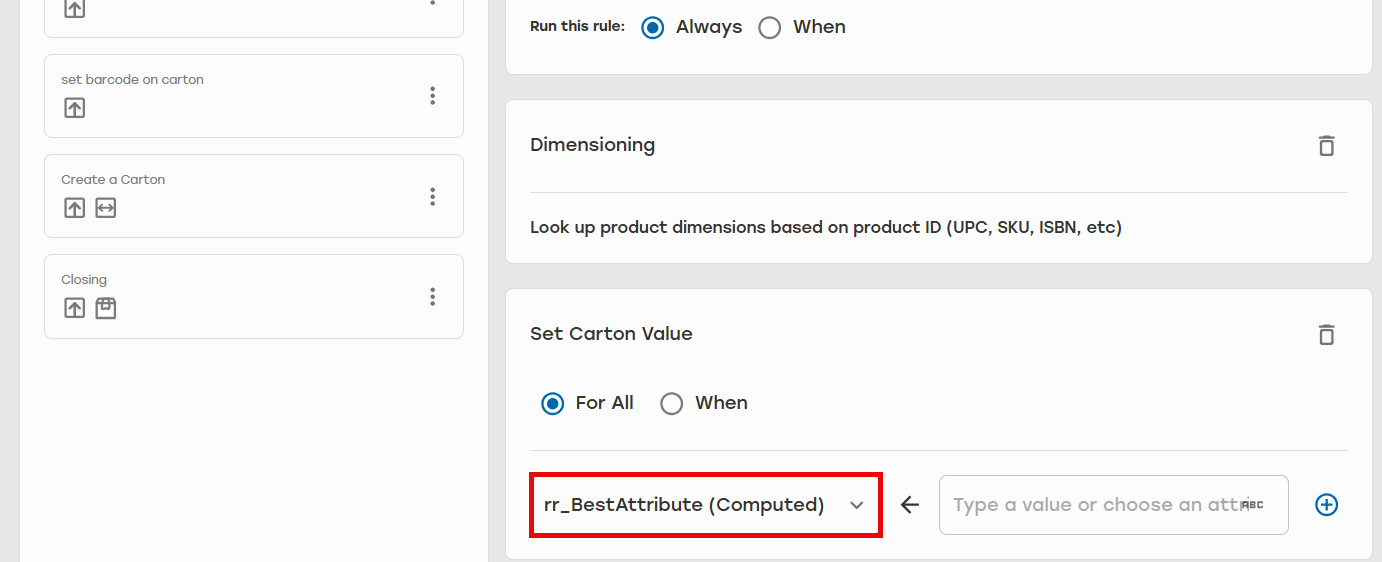
Users must set up an Import Pipeline rule using either Set Carton Value or Set Job Value actions for each custom attribute they want to create raw data for. All custom attributes must start with rr_. It must be lower case with an underscore.
 |
Correct Custom Attributes:
rr_orderNumber
rr_customerName
rr_wareHouse
Incorrect Custom Attributes:
Missing prefix - orderNumber
Uppercase - RR_orderNumber
Dash instead of underscore - rr-orderNumber
How Attributes Transform
Job-Level Attributes
Set at the job/batch level. These get a Job_ prefix in the API response.
User input:
rr_orderNumber = ORD-12345API response:
"Job_orderNumber": "ORD-12345"CSV column: Job_orderNumber
Carton-Level Attributes
Set on the individual cartons. The rr_ prefix is removed in the API response.
User input:
rr_warehouseZone = "A-12"API response:
"warehouseZone": "A-12"CSV column: warhouseZone
CSV Export
Custom attributes appear as dynamic columns at the end of the CSV file.
Example:
EnvelopeId,UtcDateTime,MachineAlias,...,Job_orderNumber,Job_priority,warehouseZone
,itemType
abc-123,2025-10-31,X5-01,...,ORD-12345,HIGH,A-12,Fragile
Notes:
Job-level attributes have
Job_prefix.Carton-level attributes have no prefix.
Different rows may have different custom attributes. These cells will be empty when not present.
CSV always contains all custom attributes.
Preview Display
Custom attributes appear as additional columns in the preview. In rare scenarios, the preview might not display all columns. This happens when the custom attributes only exist in the no n-preview data. CSV exports will contain all attributes.