Cube
The Cube page allows users to generate and control a box list. The options available on that page depend on whether using a dynamic box list or uploading a predefined box list.
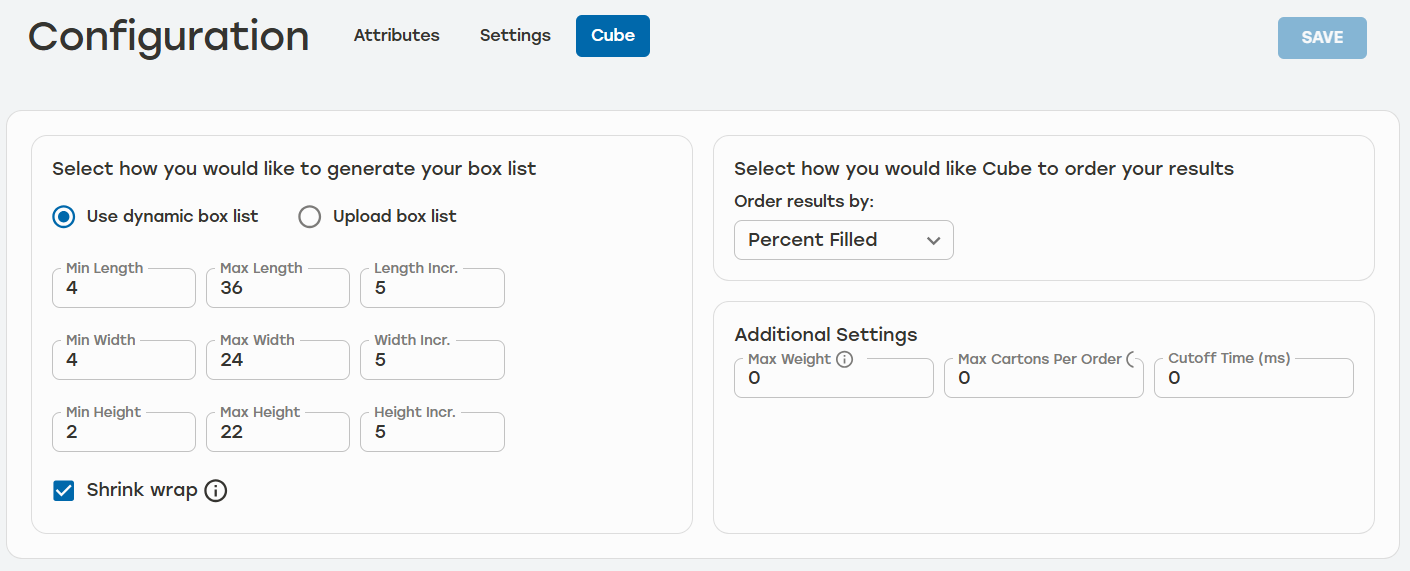 |
When dynamic box list is chosen, users enter the min, max, and increment for each dimension. Users should use caution when using this option because entering a dimension incorrectly can have an impact on the number of results generated by Cube.
Additional settings are configurable when using a dynamic box list. users can enter a max weight for each carton, max number of cartons per order (orders with greater numbers of cartons will be rejected), and cutoff time.
Users can select how the box list results are ordered. Order results can be sorted by:
Percent Filled
Distance
Surface Area
Volume
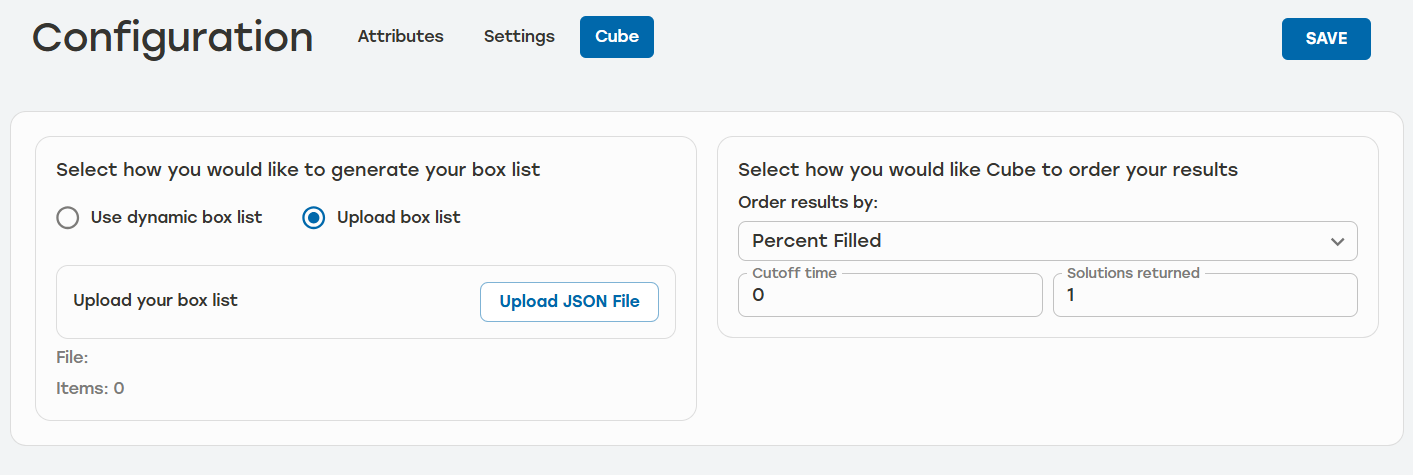 |
When upload box list is chosen, users will only be able to make changes to the box list by uploading a new JSON file.
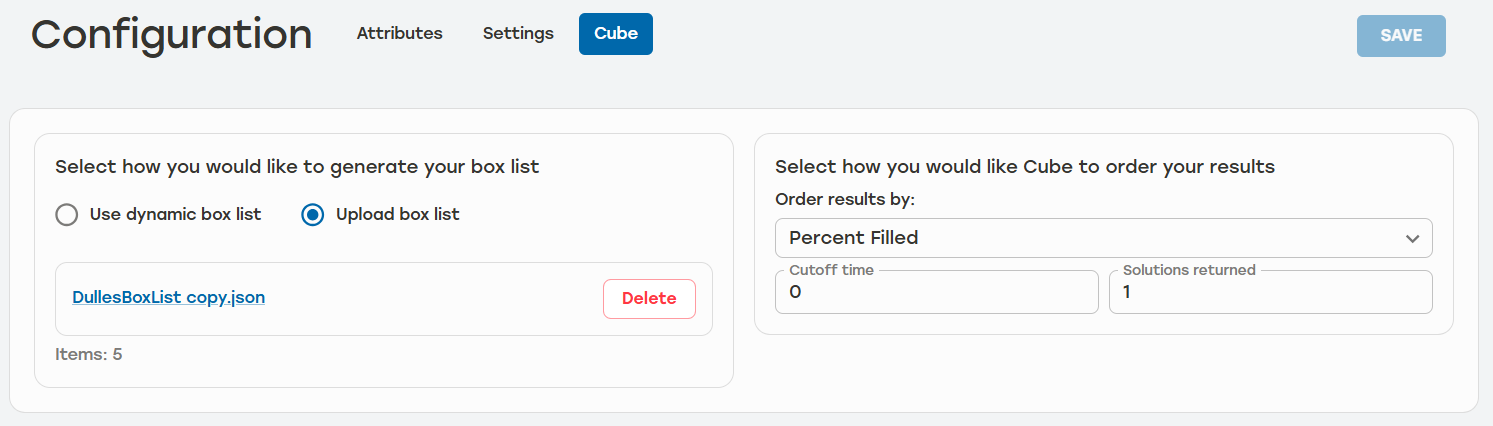 |
Once the file has been uploaded, the Configuration page will display the number of cartons that were added to the box list. The message Upload your box list will be replaced with the file name. Users can select the file name to download a copy of the existing list.
The selectionOptions property is used to guide the decisions that PackNet Cube makes while searching for optimal solutions. It dictates to PackNet Cube how to determine which solutions are more suitable or less suitable.
orderBy: Tells PackNet Cube how to sort the final set of solutions that are returned to the user, with the first solution being most suitable. This property is a string, and accepts the following values (case is important).
“percent-filled” – Results will be sorted based on the percentage filled, in descending order based on this calculation (itemVolumePacked / containerVolume * 100). This ordering may result in selecting cartons that are awkwardly long (i.e., train-style) or awkwardly wide and flat (i.e., pizza box).
“distance” – Results will be sorted by cartons with the shortest distance to cartons with the longest. Distance for an individual carton is calculated by the square root of its (length2 + width2 + height2). Containers with a shorter distance will be more compact (i.e., cubic) than containers with a longer distance. This correlates directly to using less corrugate overall.
“volume” – Results are sorted by carton volume, from least to greatest. Sorting by volume yields similar results to sorting by percent filled.
“surfaceArea” – Results are sorted by surface area, from least to greatest. Sorting by surface area yields results that are similar to sorting by distance. Surface area is the strongest indicator of the amount of corrugate used; however, it does not account for the amount required for the actual carton design that you select (e.g., RSC style patterns use the least amount of corrugate overall compared to FOL style patterns and others).
cutoffTime: An integer value in milliseconds. If the request takes longer than this amount of time, all further processing for the job will be cancelled and PackNet Cube will return whatever results it managed to compute within that time. A value of 0 indicates no cutoff time, and PackNet Cube will take as long as it needs to search all possible carton sizes for the job. Use this property to set a cutoff time for jobs that take a long time to pack.
Shrink wrap: Enabling Shrink wrap in dynamic box list will also enable the feature for the uploaded box list. Shrink wrap uses the containers list created based on configurations set in either the “Dynamic Box List” or “Uploaded Box List” sections and then trims any empty space between the packed items and the container's wall to form a snug fit. This allows for a slightly larger incrementBy value while still returning a box with less waste (saves processing time).