PackNet Core Import from DIM Data Endpoint
Note
This endpoint will be deprecated in early 2026. The new Carton Create endpoint should be used as an alternative. See PackNet DIM API for more information.
PackNet DIM is a dimensional database designed to store product records and their associated attributes for each company. For additional details, refer to the PackNet DIM Overview.
[POST] https://api.prod1.packnet.app/ImportPipelines/v1/ImportDimData
This endpoint supports two primary use cases:
Existing DIM Entries: Use this endpoint when item records, including dimensional data, have already been stored in the PackNet DIM database. For this scenario, provide the corresponding UniqueID to reference the item.
Ad-hoc Dimensional Data (for cartonization): This endpoint allows users to supply item SKU and required dimensional attributes directly without needing a pre-existing DIM record. PackNet will internally invoke the PackNet Cube (cartonization) service to determine the optimal carton size based on the provided parameters.
Access to PackNet DIM may be restricted based on company licensing and configuration. Confirm PackNet DIM availability with a Packsize representative before integrating with this endpoint.
When using cartonization, Cube must be configured with a minimum and maximum Length, Width, and Height. For more information, refer to the PackNet Cube Overview.
Before attempting this API
Before calling the PackNet Core Import from DIM Data Endpoint API, review the following requirements and constraints to ensure successful requests and proper integration with PackNet DIM.
For DIM-based requests, only the OrderID, UniqueID, and QTY fields are required. Individual product dimensions are not necessary.
For cartonization using PackNet Cube, each order must be able to fit into a single carton. Splitting orders across multiple cartons when using the ImportDIMData endpoint is not allowed. When the largest carton available will not fit all contents of the order, the order will fail when it gets to PackNet with the message Error: Cube unable to fit all items.
The ImportDimData endpoint will not allow for orders exceeding 50 items. This includes orders of more than 50 of the same sku or the combination of various skus that are more than 50 in total.
When a product does not exist in DIM, the API response may still yield a 200 successful request. Check the Search page in PackNet for failed record types when cartons are not created upon a successful request.
Make sure the Create a Carton rule and the DIM rule from have been created.
When cartonization using PackNet Cube is required, make sure the Cube rule has been created as well.
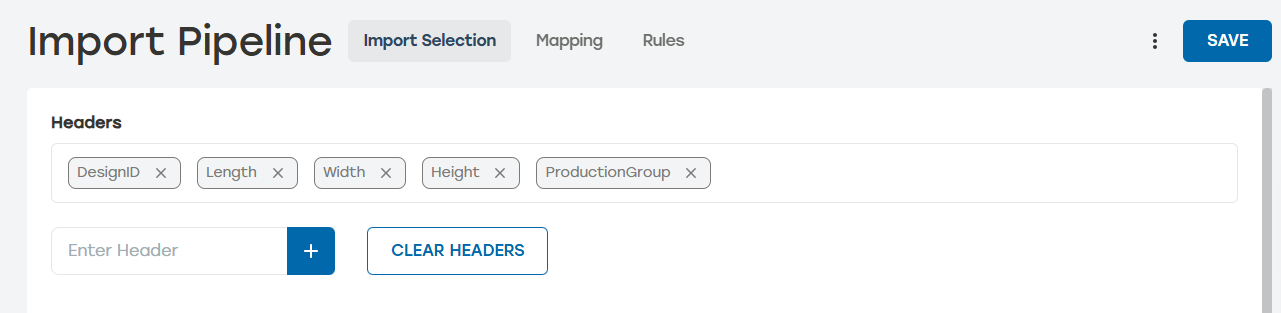
Go to Import Pipeline > Import Selection.
Create these headers:
Note
Headers are case sensitive. Make sure the case used for the headers in PackNet match the case used in the API call.
ProductionGroup
DesignID
Length
Width
Height
Go to Rules.
Select Add Rule. Enter the following information:
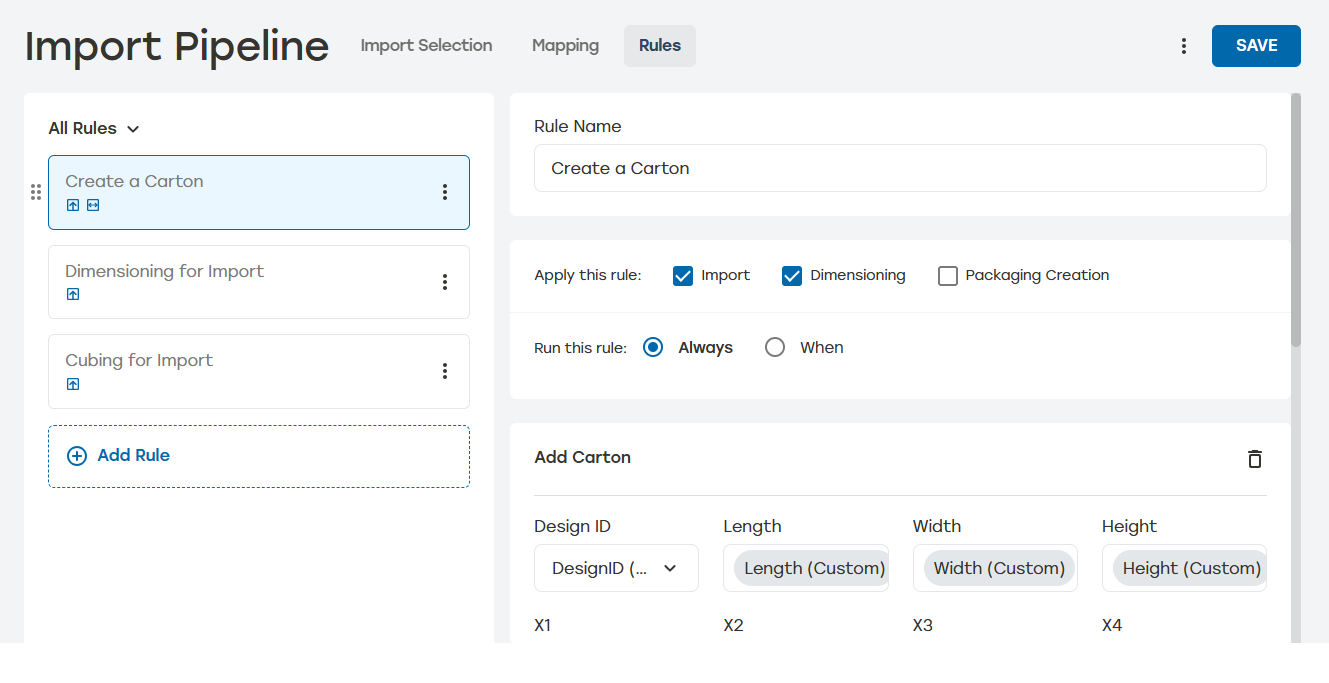
Name this rule something that easily identifies it as an API rule such as "Add a carton" or "Create a Carton."
Apply this rule: Import and Dimensioning
Run this rule: Always
Add Action: Add Carton
Design ID: DesignID (Custom)
Length: Length (Custom)
Width: Width (Custom)
Height: Height (Custom)
Select Save.
Go to Import Pipeline > Import Selection.
Create these headers:

Note
Headers are case sensitive. Make sure the case used for the headers in PackNet match the case used in the API call.
DesignID
ProductionGroup
UniqueID
Length
Width
Height
Go to Import Pipeline > Rules.
Select Add Rule. Enter the following information:
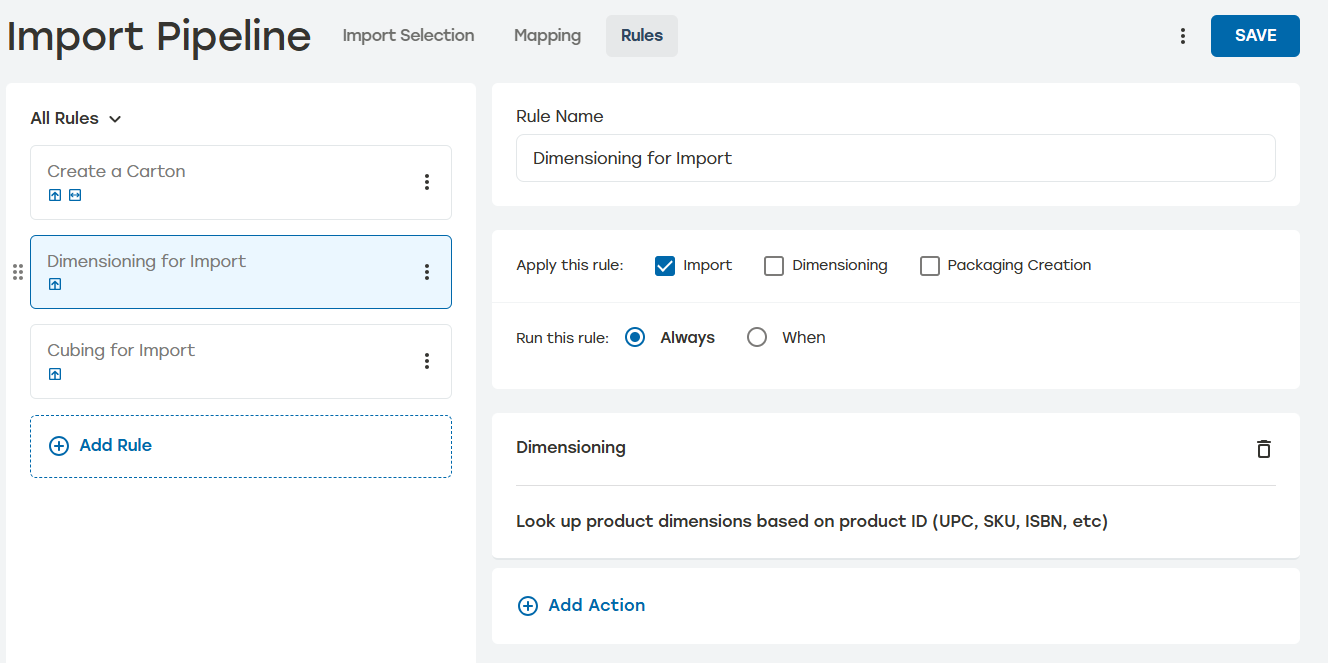
Name this rule something that easily identifies it as an API rule such as "Dimensioning for Import."
Apply this rule: Import
Run this rule: Always
Add action: Dimensioning
Select Save.
Go to Import Pipeline > Rules.
Select Add Rule. Enter the following information:
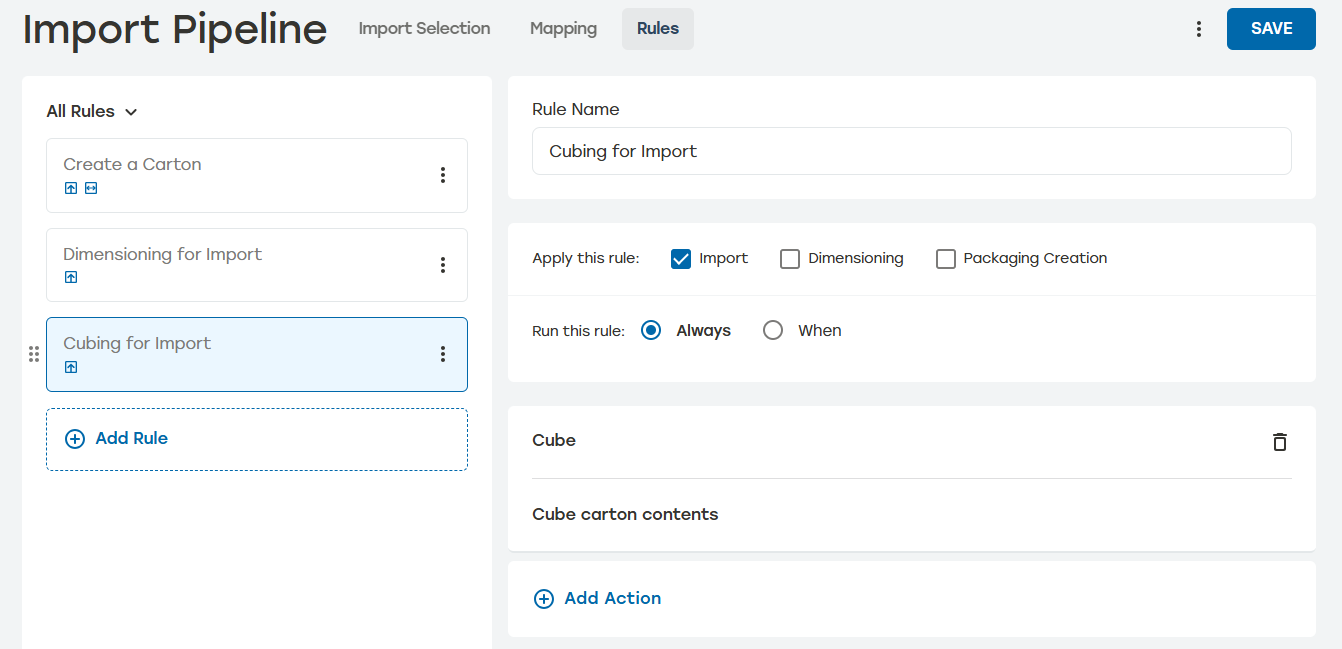
Name this rule something that easily identifies it as an API rule such as "Cubing for Import."
Apply this rule: Import
Run this rule: Always
Add Action: Cube
Select Save.
Status Codes
200 OK: Command received and processed.
400 Bad request: The request cannot be processed due to apparent client error.
401 Unauthorized: Access denied due to invalid subscription key.
403 Forbidden: The user is not allowed to make the request.
404 Not found: The requested resource cannot be found.
429 Too many requests: User exceeds 10,000 imports in a 5 minutes window.
500 Internal server error: The server does not know how to process the request.
Required Fields
Dimensions (Length, Width, and Height)
Provide all dimensions (Length, Width, and Height) or none
When dimensions aren't provided, they can be resolved using the Dimensioning rule action
When NestLength, NestWidth, or NestHeight is provided, then NestMax is required
When NestMax is provided, at least one of these fields is required: NestLength, NestWidth, and NestHeight
Request
The following example is for importing products that are already stored in PackNet DIM.
{
  "DesignID": "2010013",
  "ProductionGroup": "EM Basic",
  "Contents":
    [
        {
        "UniqueId": "123",
        "Quantity": 10
        },
        {
        "UniqueId": "123456",
        "Quantity": 10
        }

    ]
}
The following example is for when users are not planning to use PackNet DIM to house dimensional data. This endpoint can also be sent with product information thus bypassing DIM but still using Cube for cartonization.
{
  "DesignID": "2010013",
  "ProductionGroup": "EM Basic",
  "Contents":
    [
      {
      "UniqueId": "123",
      "Quantity": 3,
      "Length": 10,
      "Width": 10,
      "Height": 10
    },
    {
      "UniqueId": "456",
      "Quantity": 10,
      "Length": 10,
      "Width": 10,
      "Height": 10
    }
  ]
}
Response
The response for this API will be the applicable status code from the list above. There is no response body.